Users can only see libraries, custom workspace icons, and permission-controlled workspaces in BrandIn if they have access to the locations linked to them. You can add or remove users from any linked SharePoint location by editing its access permissions in SharePoint.
Find a linked location
Find a template library's linked folder
To find the folder linked to a template library, follow these steps:
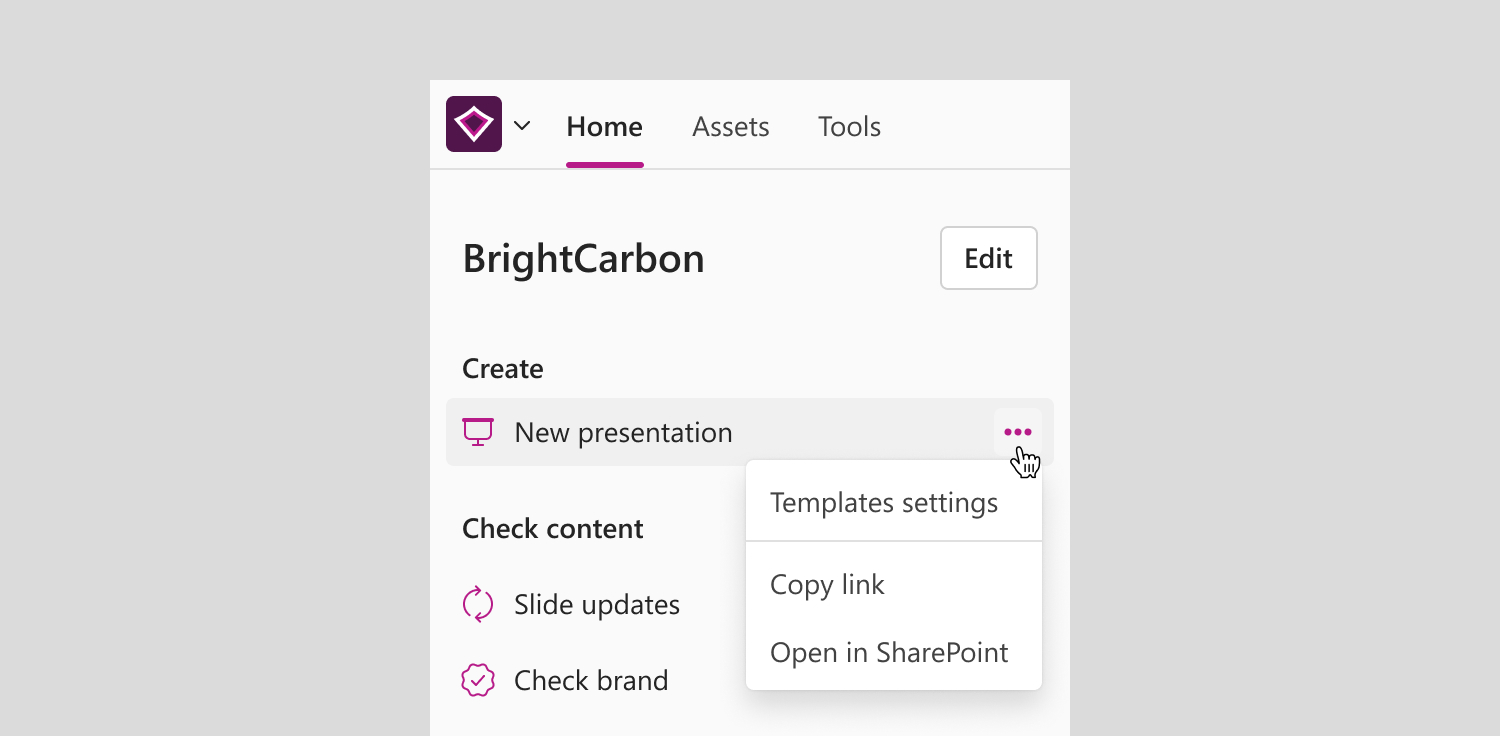
- On the workspace home screen, right click the New presentation or New document button, or select the More options button (three dots) next to it.
- Select Open in SharePoint. This will open the SharePoint location where the templates for BrandIn are stored.
ℹ️If the linked location is from OneDrive, see how to manage access on OneDrive.
Find an asset library's linked folder
To find the folder linked to an asset library, follow these steps:
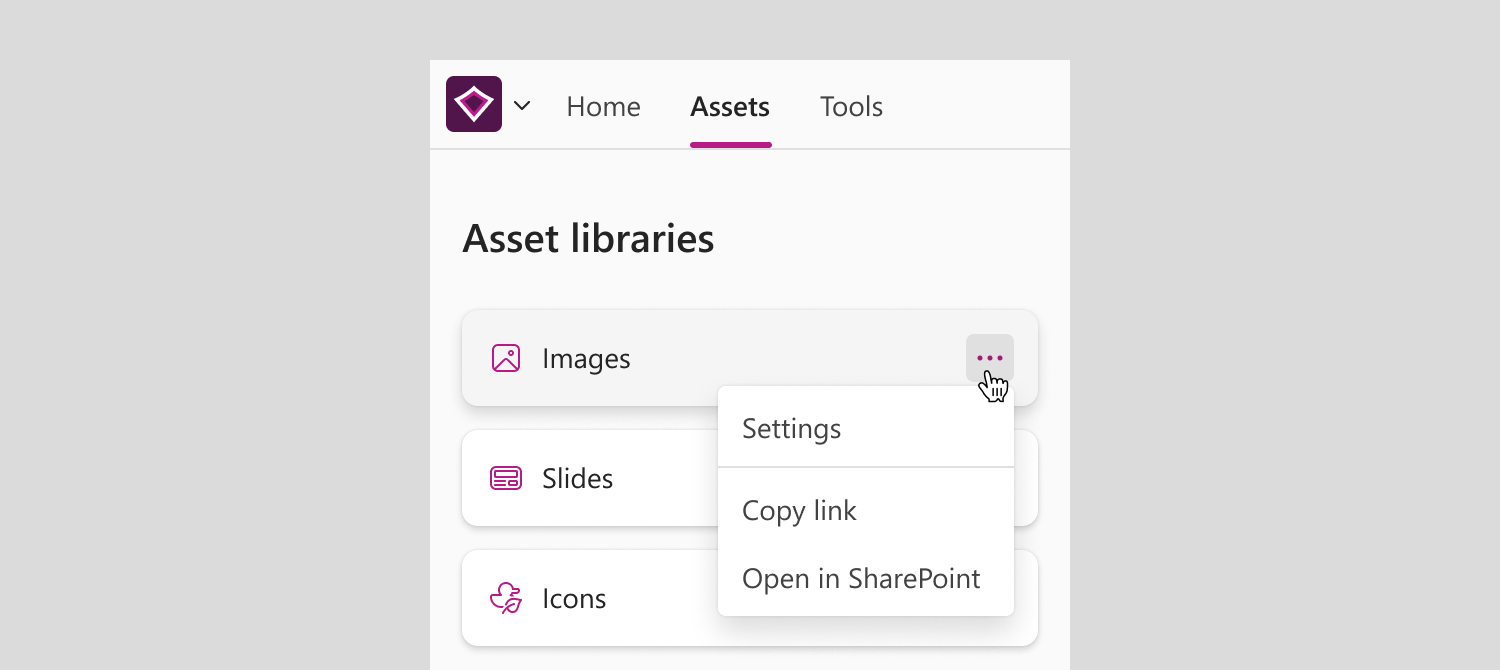
- In the Assets tab, right-click on the library, or select the More options button (three dots) next to it.
- Select Open in SharePoint. This will open the SharePoint location where your assets are stored.
ℹ️If the linked location is from OneDrive, see how to manage access on OneDrive.
Find a workspace's permissions
If your workspace uses a linked SharePoint location to control its permissions, follow these steps to locate it:
- On the workspace home screen, select the Edit button next to the workspace name to open workspace settings.
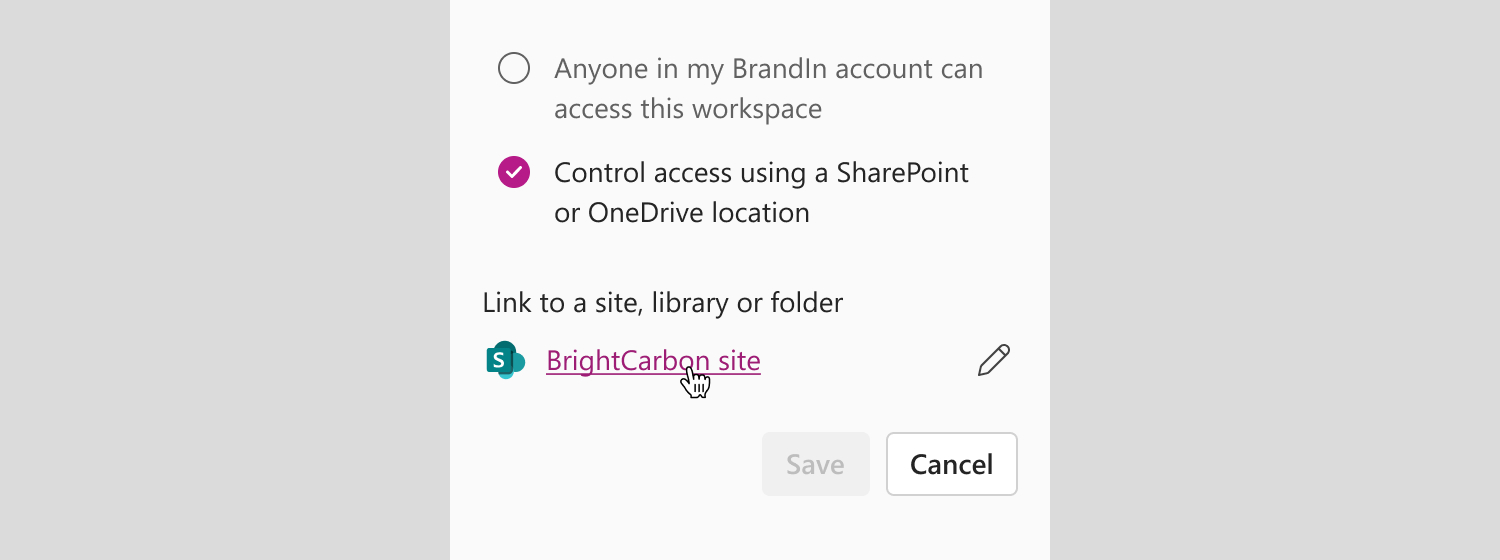
- Go to Permissions.
- On the Permissions screen, select the link to the site, library, or folder. This will open the linked SharePoint location used to control access to the workspace.
ℹ️If the linked location is from OneDrive, see how to manage access on OneDrive.
ℹ️If your workspace permissions are set to Anyone in my BrandIn account can access this workspace, you can see who has access to the workspace in the Users and licences panel.
Find a workspace's icon
If your workspace uses a custom icon file linked from SharePoint, follow these steps to locate it:
- On the home screen, select the Edit button next to the workspace name to open workspace settings.
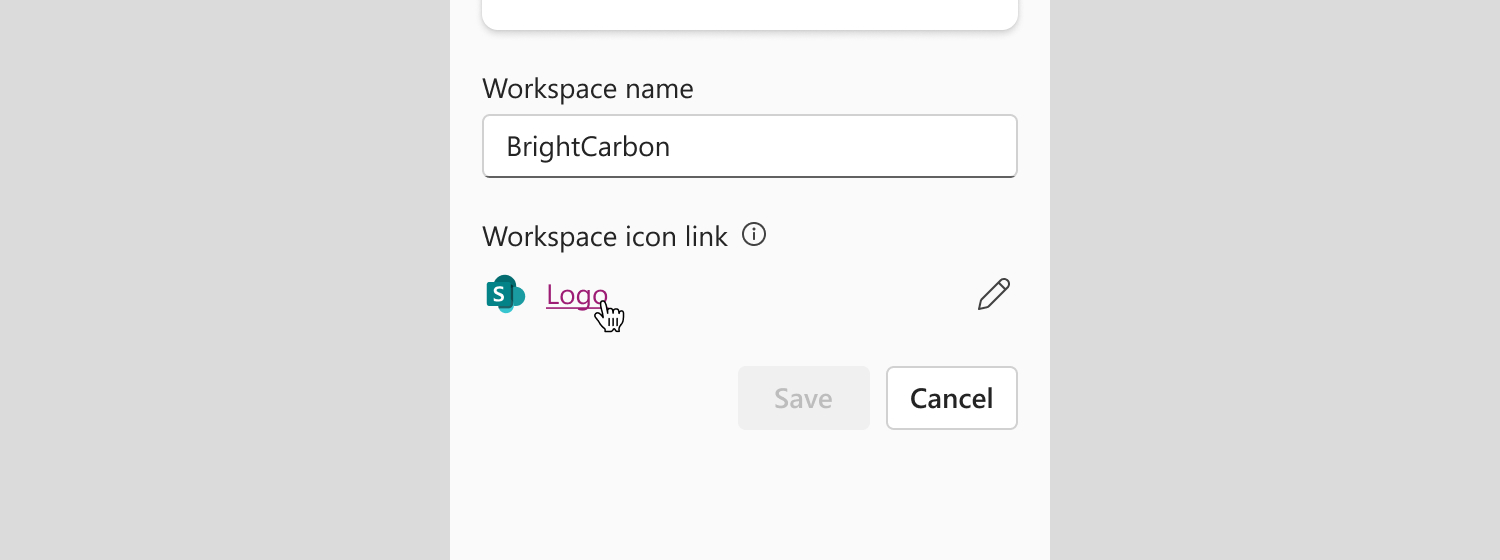
- Go to Name & icon.
- On the Name & icon screen, select the link to the workspace icon. This will open the linked icon file in SharePoint.
ℹ️If the linked location is from OneDrive, see how to manage access on OneDrive.
Manage access to a site
ℹ️We recommend managing access to SharePoint locations by adding or removing users from the location's SharePoint site. This is because all locations within a site inherit the site's access permissions by default. Managing site permissions is normally done by IT administrators.
View or change your site's privacy setting
You can view or change whether a site is public or private in SharePoint. Public sites are accessible to anyone within your organization; private sites are only accessible to added members and visitors.
- Go to the site.
- Select Settings in the upper-right corner of your site.
- Select Site information.ℹ️
If you don't see Site information, you might not have permission to change the SharePoint site's information. Contact your Microsoft 365 Global Administrator.
- In Privacy settings, choose Public or Private.ℹ️
Privacy settings are only visible for team sites. Communication sites can only be accessed by added users.
Learn more about Communication sites and Team sites from Microsoft.
- Select Save.
Add users
You can give people access by adding individual users or groups to the SharePoint site.
- Go to the site.
- Select Settings in the upper-right corner of your site.
- Select Site permissions.
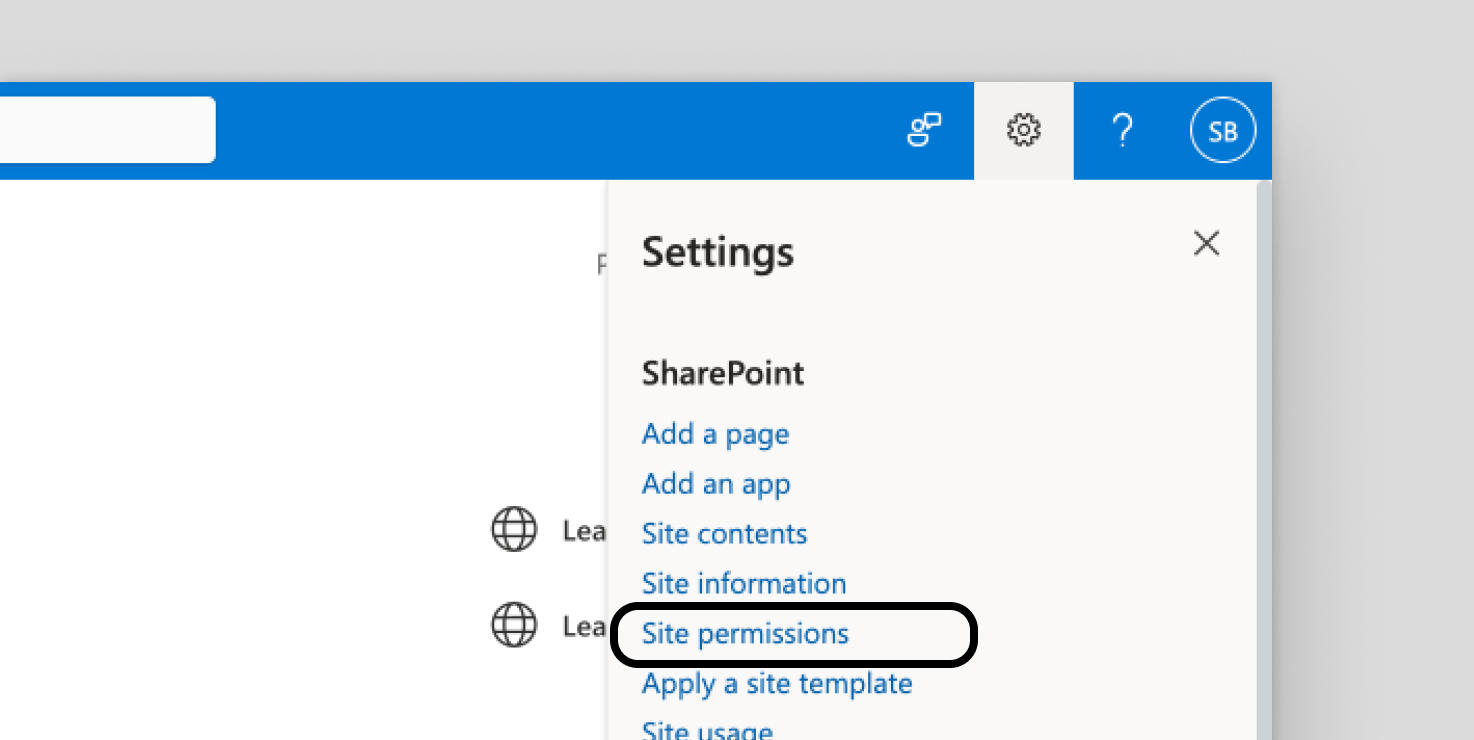
- The next step depends on whether your site is a Communication site or a Team site:
- If you see a Share site button, your site is a Communication site. Select it and go to step 5.
- If you see an Add members button, your site is a Team site. Select Add members then choose one of the following:
- Add members to group - Gives users access to the site as well as other Microsoft 365 Group resources such as calendars and conversations
- Share site only - Gives users access to the SharePoint site, but not to other Microsoft 365 Group resources.ℹ️
If you want to invite groups of users, choose Share site only. The Add members option only supports adding individual users or the 'Everyone except external users' security group.
- Enter the name(s) of all users or groups.
- If you'd like to give your whole organization access, you can add the 'Everyone except external users' security group.
- Select their level of control.
- If you're adding members to the group, you can make them a member or owner. This won't affect permissions in BrandIn.
- If you're sharing a site, you can select Read, Edit, Full Control.⚠️
Ensure that BrandIn Admins have at least edit privileges to the site.
- Select Save or Add to add users.
ℹ️For further information, read Microsoft's article on managing your team site's settings and sharing a site.
Remove users from group
- Go to the site.
- Select members in the upper-right corner of your site.
- Select the down arrow next to the permission level for the member to remove and select Remove from group.ℹ️
The Remove from group option is only available for individuals that are part of the Microsoft 365 group.
If a member is removed from a Microsoft 365 group, but was also added using Share site only, they will still retain their permissions to access the site as an individual. To remove site access from someone who isn't a member of the group, see the following section.
Remove users from site only
- Go to the site.
- Select Settings in the upper-right corner of your site.
- Select Site permissions.
- Select the down arrow next to the permission level for the member to remove.
- Select the down arrow next to the member to remove and select Remove.ℹ️
The Remove option is only available for individuals that aren't part of the Microsoft 365 group.
If the removed member is also part of a Microsoft 365 group, they will still retain their permissions from the Microsoft 365 group.
ℹ️For further information, read Microsoft's article on managing your team site's settings.
Manage access to a document library
⚠️Managing a document library's access permissions separate to its site's permissions is not recommended. All libraries within a site inherit the site's access permissions by default, and customizing a document library's permissions separately breaks this inheritance. We recommend managing access to their site instead.
Only the administrator or the owner of the document library can change its access permissions.
To manage the access permissions of a document library separately to its site (or parent), follow these steps:
- Go to the document library in SharePoint.
- Select Settings, and then Library settings. Depending on your SharePoint version, you may then need to select More library settings.ℹ️
Depending on your SharePoint version, if you don't see Settings, choose the Library tab to open the ribbon, and then select Library Settings or List Settings on the ribbon.
- On the Settings page, under Permissions and Management, select Permissions for this document library.
- Select Grant Permissions on the Permissions tab.ℹ️
If you can't see Grant Permissions, the library is still inheriting permissions from its parent. You must first break permission inheritance for the library before you can assign it unique permissions, change permissions levels, or remove user permissions. To break the library's permissions inheritance, select Stop Inheriting Permissions
- In the Share... dialog box, select the Invite people tab, and then type the names of the people or group you want to grant access to in the Enter names or email addresses... box.
- Check or uncheck Share everything in this folder, even items with unique permissions. This will grant or restrict access to items you already set unique permissions for. (This option is only available for folders.)ℹ️
The permission level granted is set to Edit by default. Read permission is enough for users to have access to the library in BrandIn. To change the permission level granted, click Show options and change the selection in the Select a permission level box.
- Select Share.
ℹ️For further information, read Microsoft's article on customizing permissions for a SharePoint list or library.
Manage access to a folder or file
⚠️Managing a folder or file's access permissions separate to its site's permissions is not recommended. All folders and files within a site inherit the site's access permissions by default, and customizing a folder or file's permissions separately breaks this inheritance. We recommend managing access to their site instead.
Only the owner or of the folder or file can change its access permissions.
To edit the user access settings of a SharePoint folder or file, follow these steps:
- In SharePoint, select the file or folder you want to manage access to.
- Select Details in the upper-right corner of the page.
- On the Details pane, select Manage access.
- In the Manage access window:
- To stop sharing the file entirely, select Stop sharing.
- To delete a sharing link, go to the Links tab and select Remove link next to the link. Confirm by selecting Remove.
- To grant access to someone specific, select Grant access in the upper-right corner of the window, add their name, and select Confirm.
- To remove access from someone specific, select their name in the People tab, open the Ways this person can access dropdown, choose No direct access, and select Apply. Confirm by selecting Remove.
ℹ️For further information, read Microsoft's article on how to change permissions of a shared folder or file.