Users can only see libraries, custom workspace icons, and permission-controlled workspaces in BrandIn if they have access to the locations linked to them. You can add or remove users from any linked OneDrive location by editing its access permissions in OneDrive.
Find a linked location
Find a template library's linked folder
To find the folder linked to a template library, follow these steps:
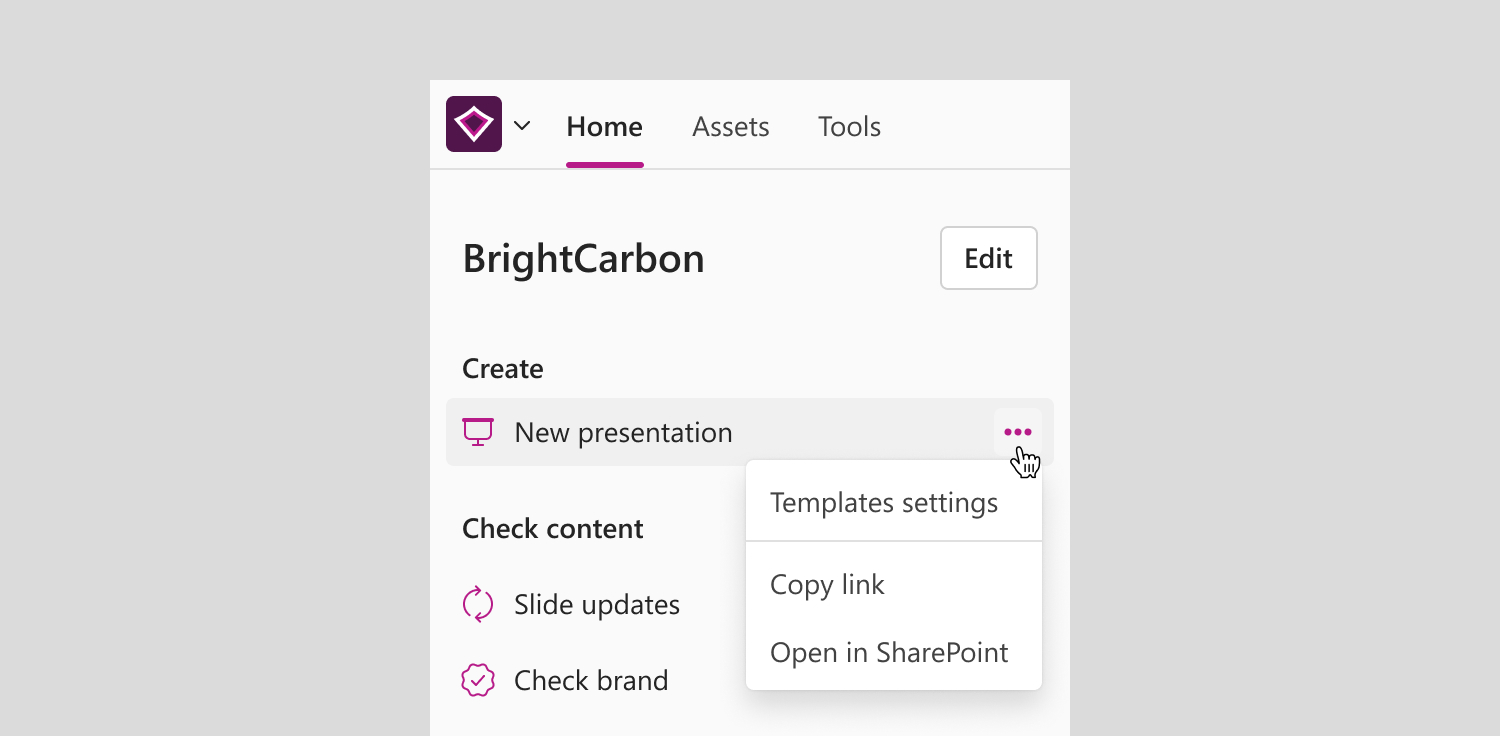
- On the workspace home screen, right click the New presentation or New document button, or select the More options button (three dots) next to it.
- Select Open in OneDrive. This will open the OneDrive location where the templates for BrandIn are stored.
ℹ️If the linked location is from SharePoint, see how to manage access on SharePoint.
Find an asset library's linked folder
To find the folder linked to an asset library, follow these steps:
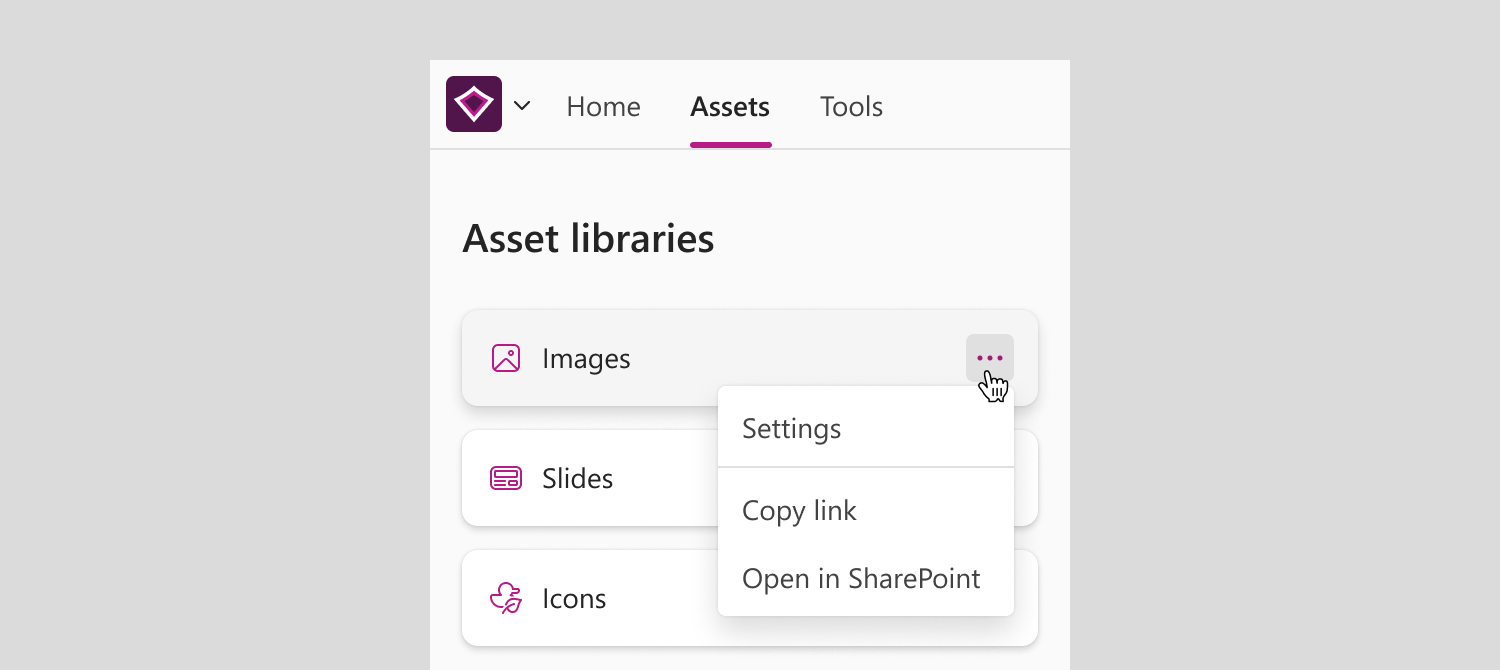
- In the Assets tab, right-click on the library, or select the More options button (three dots) next to it.
- Select Open in OneDrive. This will open the OneDrive location where your assets are stored.
ℹ️If the linked location is from SharePoint, see how to manage access on SharePoint.
Find a workspace's permissions
If your workspace uses a linked OneDrive location to control its permissions, follow these steps to locate it:
- On the workspace home screen, select the Edit button next to the workspace name to open workspace settings.
- Go to Permissions.
- On the Permissions screen, select the link to the library or folder. This will open the linked OneDrive location used to control access to the workspace.

ℹ️If the linked location is from SharePoint, see how to manage access on SharePoint.
ℹ️If your workspace permissions are set to Anyone in my BrandIn account can access this workspace, you can see who has access to the workspace in the Users and licences panel.
Find a workspace's icon
If your workspace uses a custom icon file linked from OneDrive, follow these steps to locate it:
- On the home screen, select the Edit button next to the workspace name to open workspace settings.
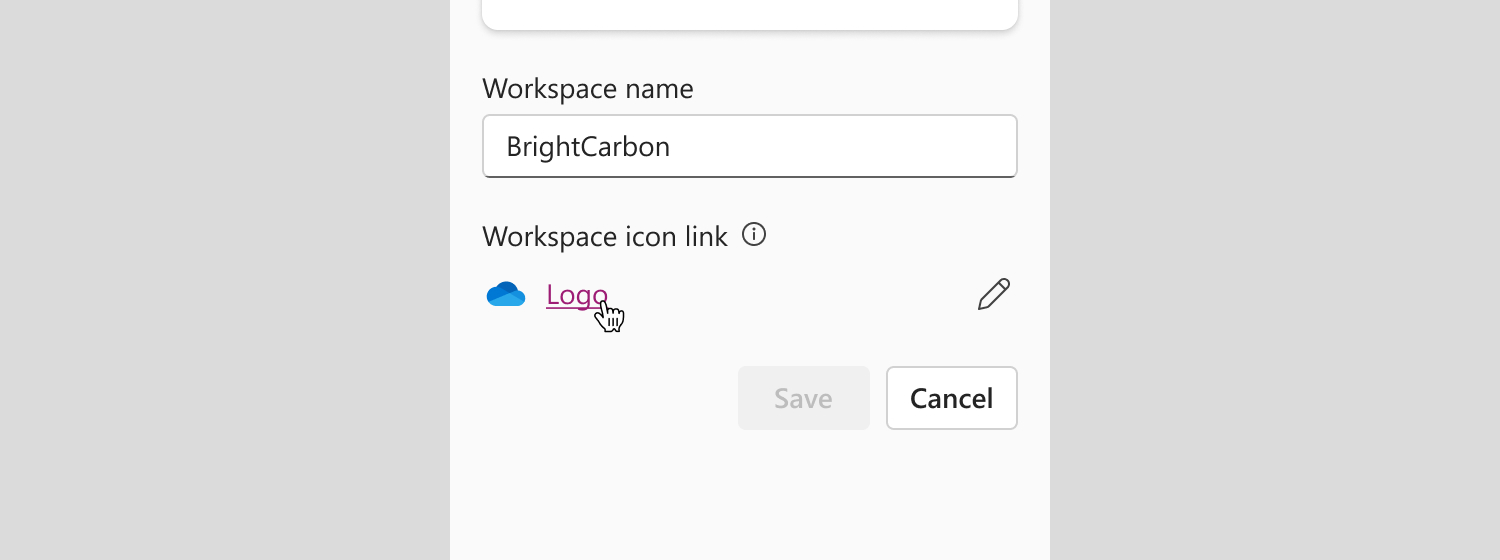
- Go to Name & icon.
- On the Name & icon screen, select the link to the workspace icon. This will open the linked icon file in OneDrive.
Manage access to a folder or file
Only the owner of the folder or file can change its access permissions.
To edit the user access settings of a OneDrive folder or file, follow these steps:
- In OneDrive, select the file or folder you want to manage access to.
- Select Details in the upper-right corner of the page.
- On the Details pane, select Manage access.
- In the Manage access window:
- To stop sharing the file entirely, select Stop sharing.
- To delete a sharing link, go to the Links tab and select Remove link next to the link. Confirm by selecting Remove.
- To grant access to someone specific, select Grant access in the upper-right corner of the window, add their name, and select Confirm.
- To remove access from someone specific, select their name in the People tab, open the Ways this person can access dropdown, choose No direct access, and select Apply. Confirm by selecting Remove.
ℹ️For further information, read Microsoft article on how to change permissions of a shared folder or file.