When setting up templates, a template library is created in BrandIn and connected to an existing folder or library in SharePoint or OneDrive.
The assets remain stored in those locations, but appear in BrandIn once the location is linked.
Add a template library
ℹ️If you set up a template library while using PowerPoint or Word, it will only appear in that application.
To use templates in another application, complete the setup there as well — you can either link the same location or choose a different one.
You can also manage template location for all applications in Workspace Settings. Learn how to change templates library location
Start template setup
- Go to the workspace home screen.
- Select Set up templates. This starts a simple guided flow to connect your templates to BrandIn.
1. Choose where your templates are stored
You can link a document library or a folder from SharePoint, OneDrive, or Teams.
BrandIn will display the templates from that location, while the files themselves stay where they are.
ℹ️Note that folders accessed through Teams are stored in SharePoint.
2. Link your templates location
- Open SharePoint, OneDrive, or Teams and go to the library or folder you want to link.
- Copy the link:
- For a folder: right-click and select Copy link, or select it and use Copy link from the toolbar.
- For a folder in Teams: go to the Shared tab at the top of your team’s channel. Hover over the folder, select More actions (three dots), then Copy link.
- For a SharePoint library: open the library and copy the link from the browser’s address bar.
- Return to BrandIn and paste the link into the Link to templates folder box.
⚠️Make sure users in your BrandIn account have access to the linked library or folder. If they don’t, they won't be able to see the templates in BrandIn.
3. Finish setup
Your template library will now appear on the workspace home screen.
Any changes made in the linked folder or library — such as adding, removing, or updating templates — will automatically appear in BrandIn. Learn how to add and organise templates in BrandIn
Change template library location
You can change or set up templates library location for all application in the Workspace settings:
- Go to the home screen of the workspace where you want to edit template library location.
- Select the Edit button next to the workspace name to open workspace settings.
- Go to Templates.
- Select the application where you want to change template library location.
- Select Edit location.
- Select Edit link (pencil icon) next to the current SharePoint link.
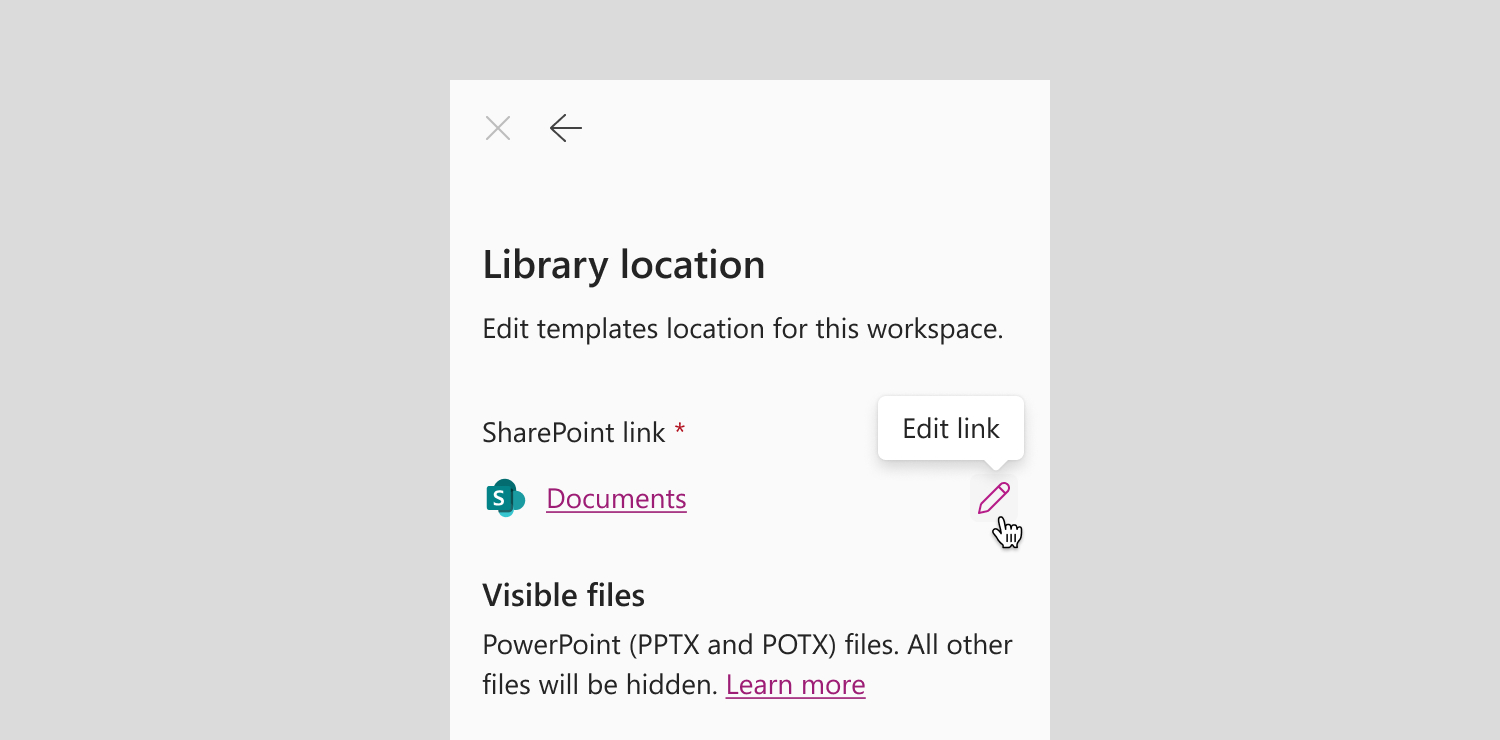 ℹ️Note: you can select the SharePoint or OneDrive link to open the location in your browser.
 - In SharePoint, OneDrive, or Teams, copy the link of the new library or folder location you want to use from the browser's address bar, and paste it into the templates link box in BrandIn.
- Select Enter to validate the link.
- Select Save to apply the new location.
Templates from the linked location will now be available from the New presentation or New document button on the workspace home screen, depending on which application the changes apply to.