This article explains how to revoke a permission for BrandIn accepted on behalf of the entire organization. You must be a Microsoft 365 administrator to complete these steps.
⚠️Revoking BrandIn permissions will cause parts or all of the application to stop working for users. Only follow these instructions if you accepted a permission scope for the entire organization by mistake.
How to revoke a permission in Entra
- Go to Microsoft Entra.
- Select Enterprise apps.
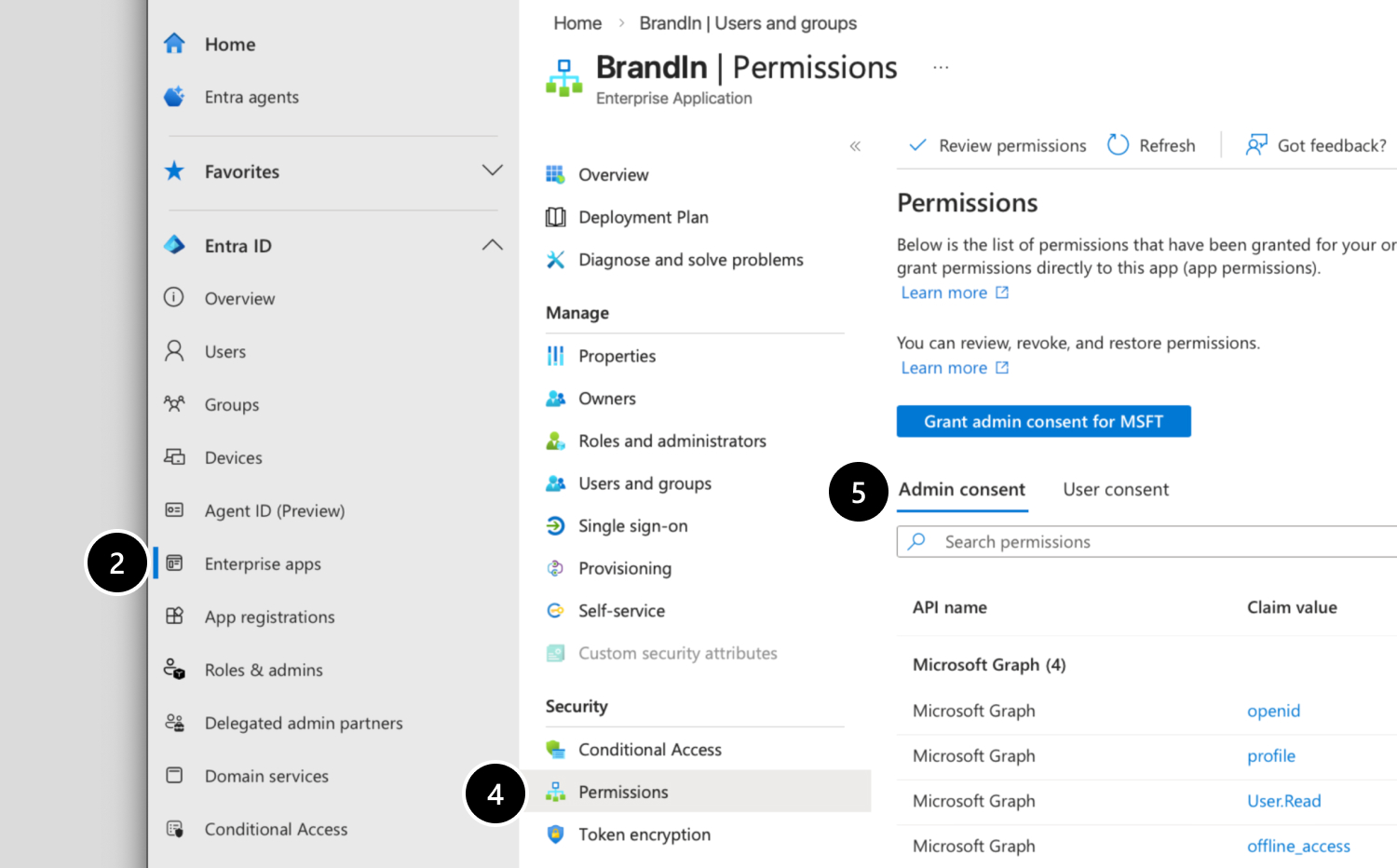
- From the list of applications, select BrandIn.
- Select Permissions.
- In the Admin consent tab, view all accepted permissions for BrandIn.
- Click the more options button for the selected permission to revoke.
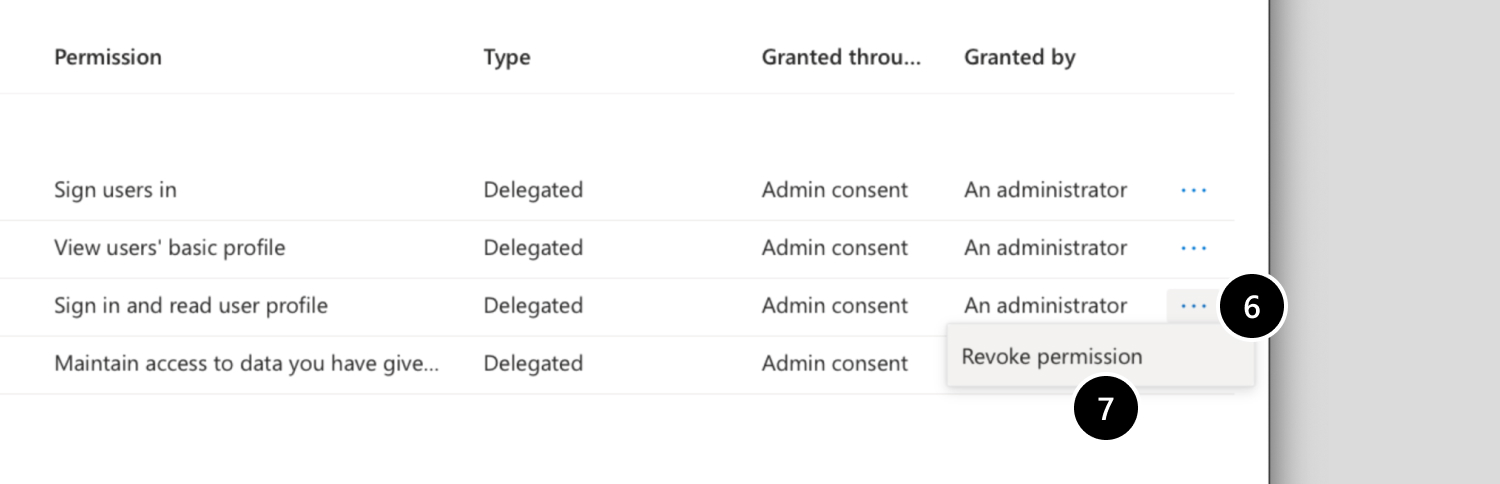
- Select Revoke permissions, then confirm with Yes, revoke.