What is Open invite?
Open invite lets anyone in your organization who has access to BrandIn join automatically—no invite or admin approval needed.
Limit who can join with Open invite on
If you want to turn on Open invite but limit who can join, you can make BrandIn available to specific users or groups only.
To do this, you can deploy the app to selected users or groups using the centralized deployment feature in the Microsoft 365 admin center, and block access to the Office Store.
See how to deploy BrandIn to learn more.
Turn Open invite on or off
When you turn off Open invite, all users need to be manually invited to join BrandIn. Turning Open invite on will delete all pending invites, as users no longer need to be invited.
To turn Open invite on or off:
- Go to the Settings menu in the lower-right corner of the home screen.
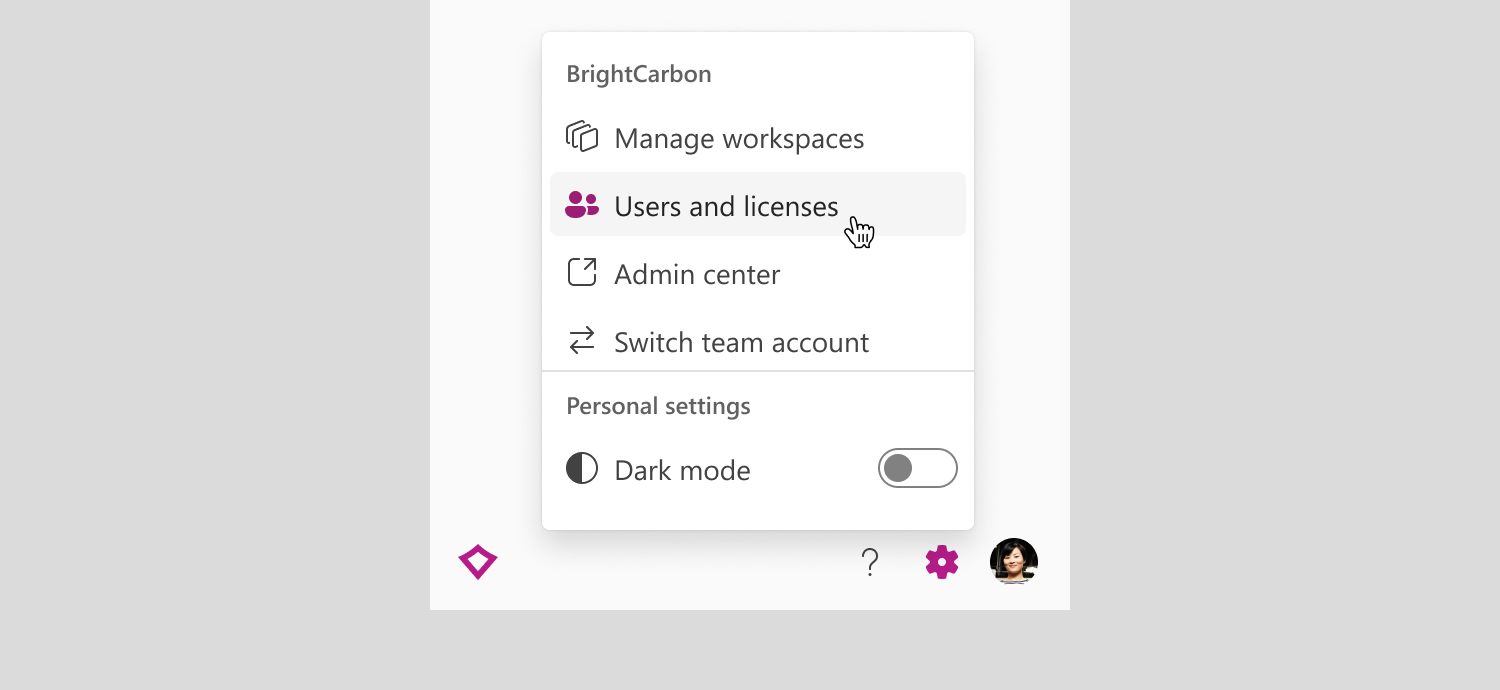
- Select Users and licenses.
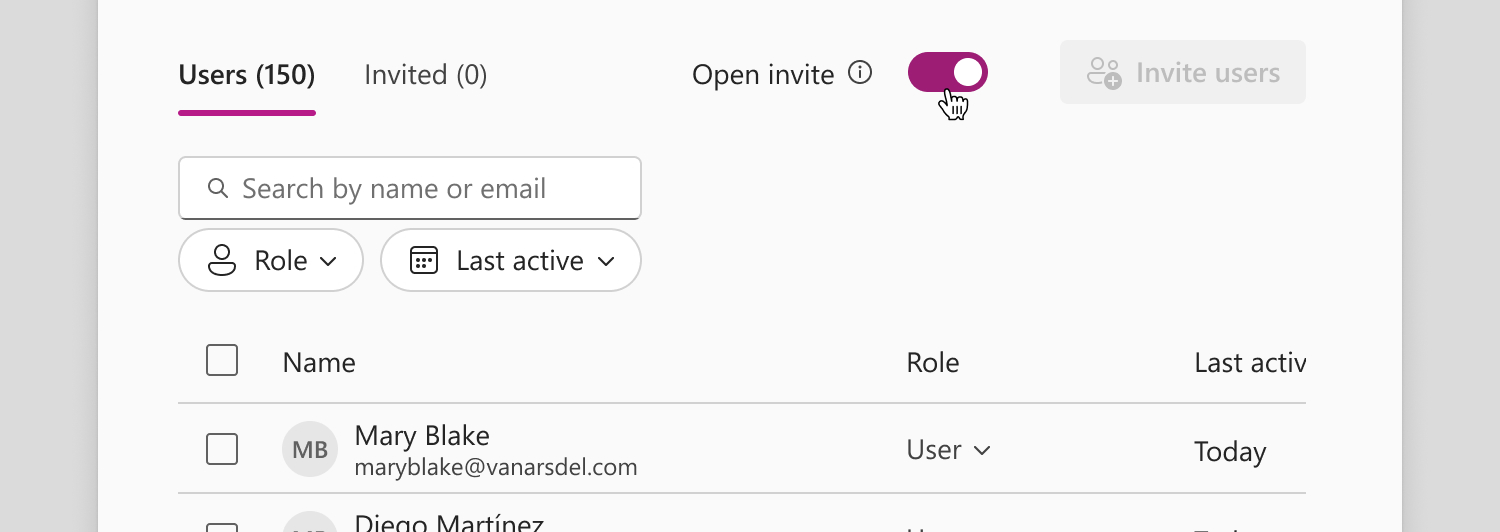
- Turn on the Open invite toggle (next to the Invite users button).
Access requests when licenses run out
If there are no licenses available when a user tries to join, users will be prompted to send a request. You’ll get an email notification, and you can either:
- Add more licenses.
- Free some up by removing inactive users.
Then, let the user know they can try again.
Learn more about managing users and licenses.