Each asset or template library in BrandIn is linked to a library or folder in SharePoint or OneDrive. If a BrandIn library is not found, the location it's linked to may have been moved or deleted. Restoring the linked library or folder in SharePoint or OneDrive can resolve the issue.
Restore a deleted library or folder on SharePoint
Depending on your permissions, you may be able to restore a deleted SharePoint library or folder from the SharePoint Recycle bin:
- Site owners can delete and restore any items.
- Site members can delete any items, but can only restore items they deleted.
Follow these steps to restore a deleted SharePoint library or folder:
- Navigate to the Workspace home screen and select the template library that is not found, or go to the Assets tab and select the asset library that is not found:
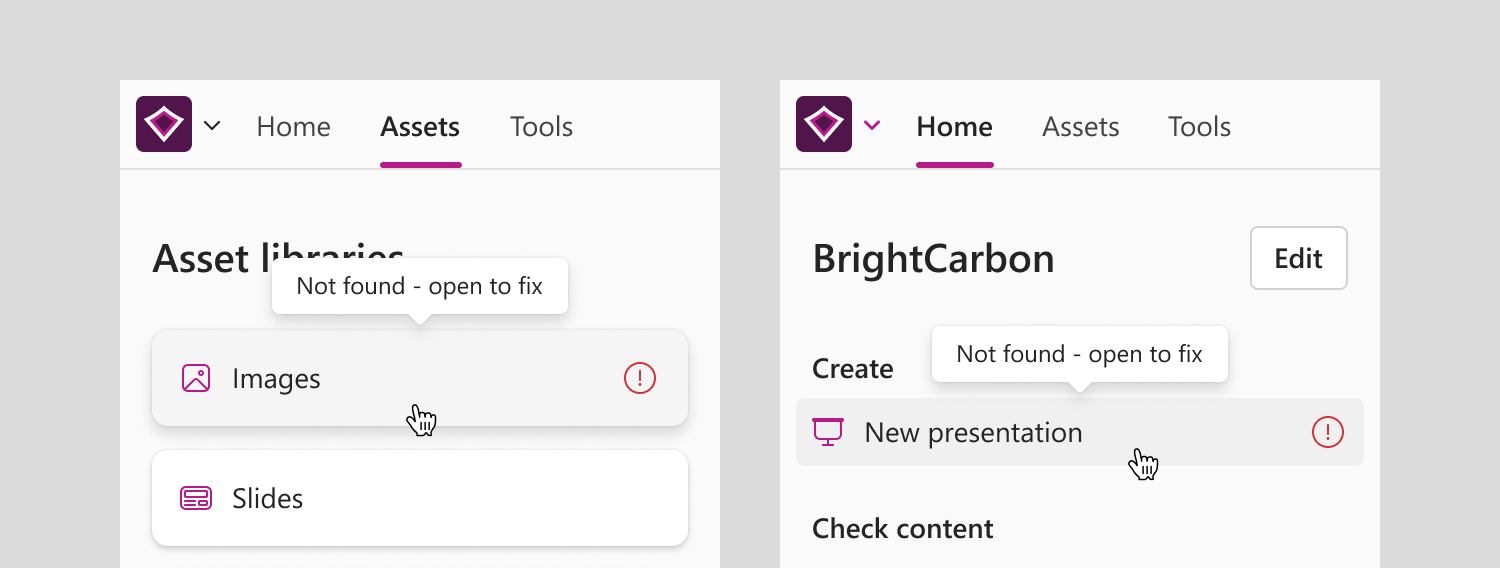
- If an asset library is not found, there will be an error icon next to its name.
- If a template library is not found, there will be an error icon on the New presentation or New document button.
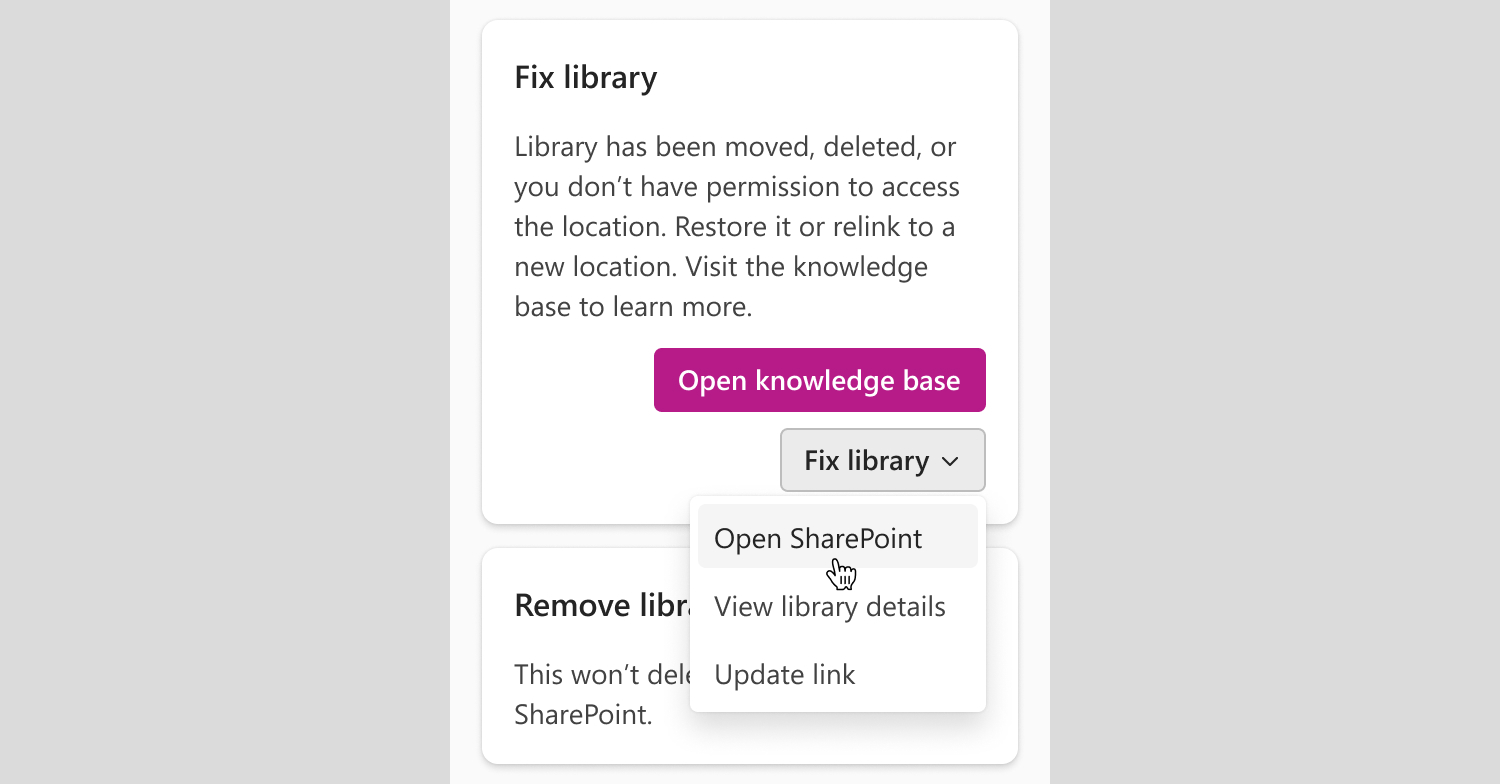
- On the Fix library card, select Fix library followed by Open SharePoint. This will open the SharePoint site the library or folder was stored in.
- Select Site contents. Depending on the site type, it might be on the left or at the top of the page.

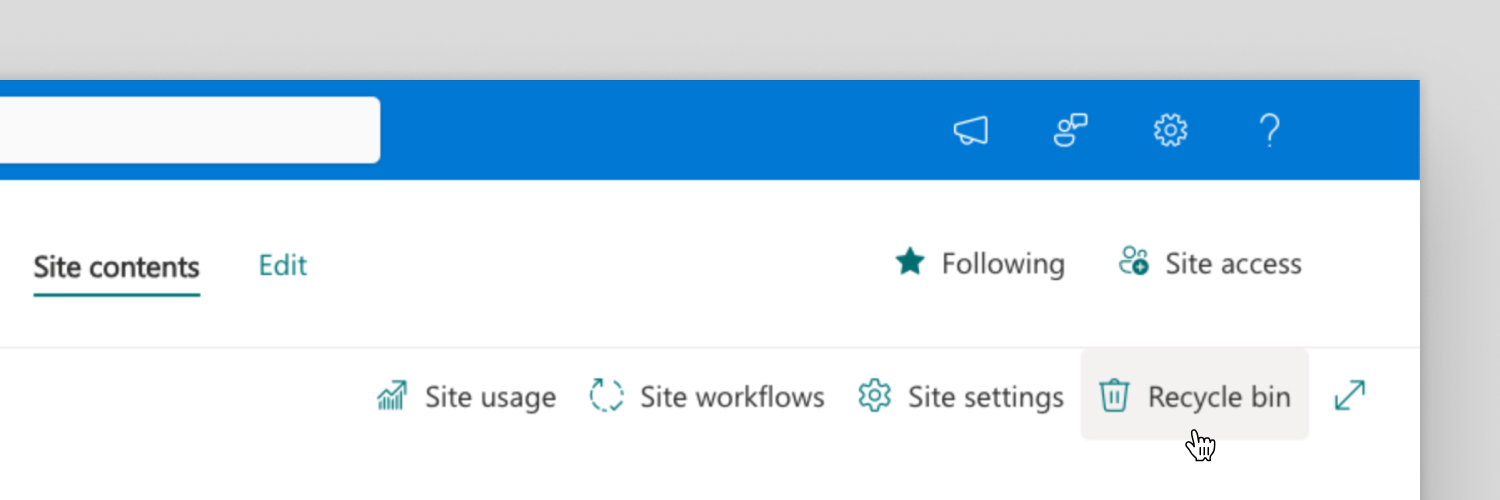
- In Site contents page, select Recycle bin at the top-right.
- Locate the deleted library or folder, select it, and click Restore.
ℹ️If the item isn’t in the Recycle bin, check the second-stage Recycle bin at the bottom of the page. For further information follow Microsoft's guide on how to restore deleted items from the site collection recycle bin.

If you can't find a deleted file in SharePoint’s Recycle bin, or don't have access to the second-stage Recycle bin, contact the Site Owner of the site where the file was stored.
Restore a deleted folder on OneDrive
If the linked folder was on OneDrive, only the owner of the folder will be able to restore it.
Follow these steps to restore a deleted OneDrive folder:
- Navigate to the Workspace home screen and select the template library that is not found, or go to the Assets tab and select the asset library that is not found:
- If an asset library is not found, there will be an error icon next to its name.
- If a template library is not found, there will be an error icon on the New presentation or New document button.
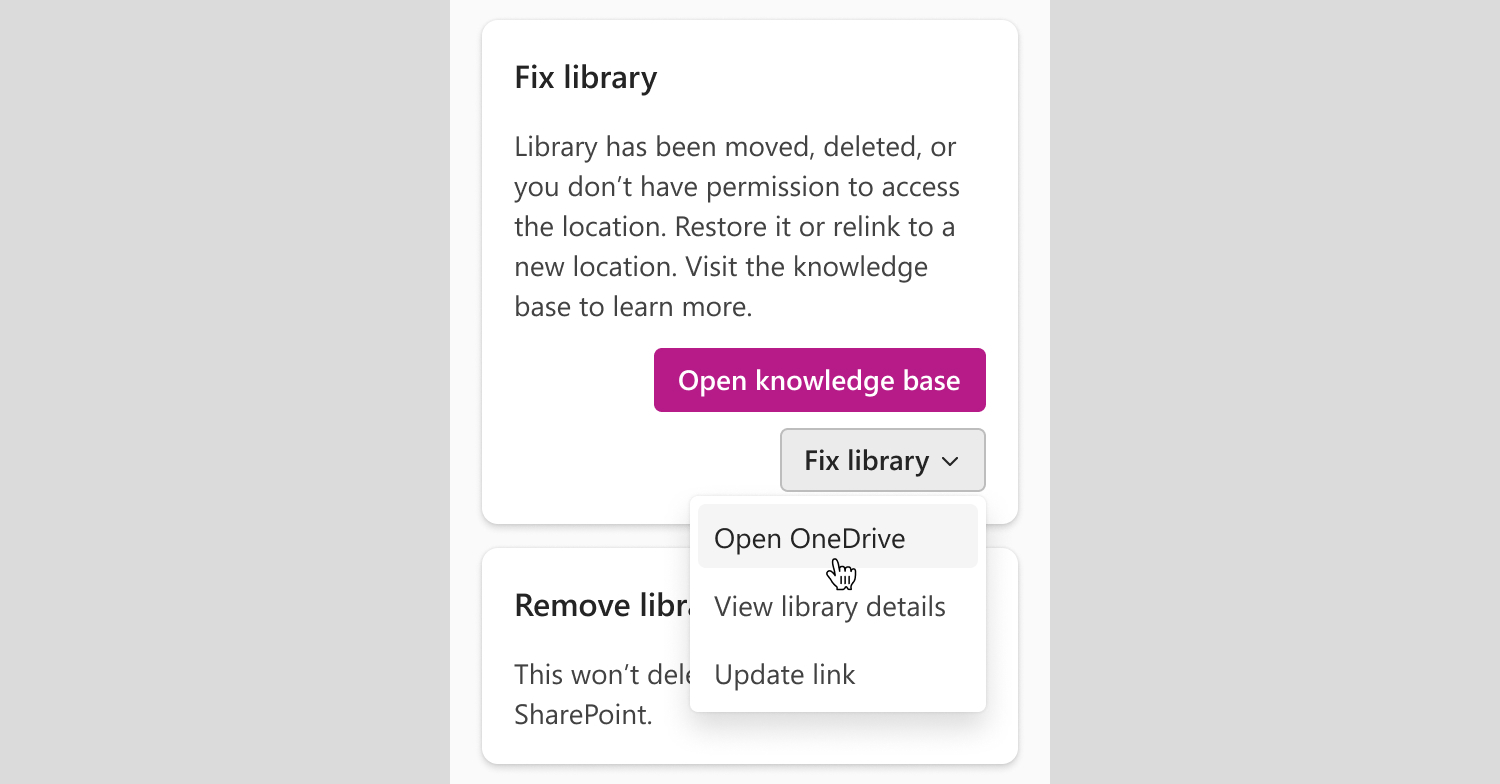
- On the Fix library card, select Fix library followed by Open OneDrive.
- In the navigation pane on the left side of the page, select Recycle bin.
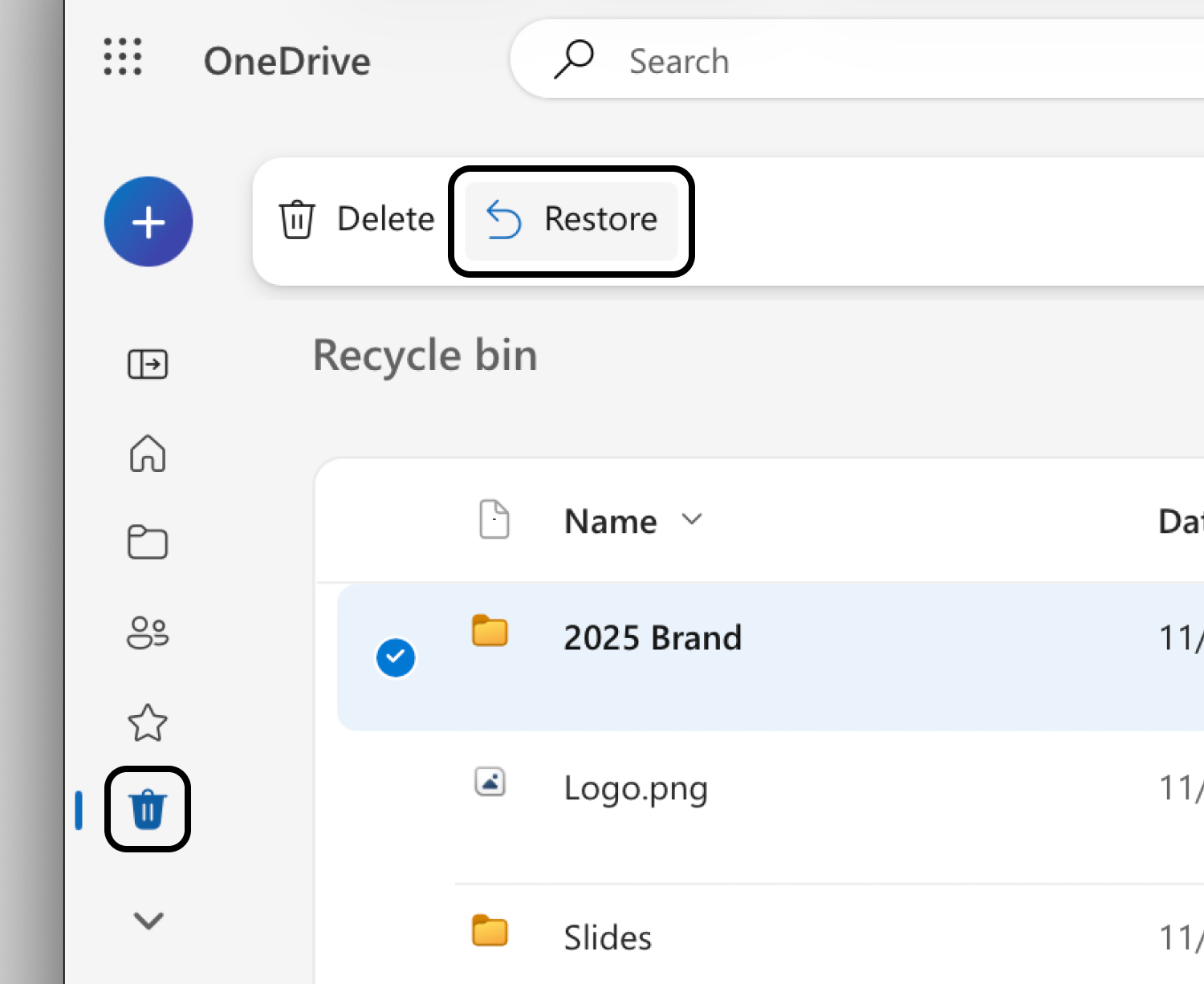
- Locate the deleted folder, select it, and click Restore.
ℹ️If you can't find a deleted folder in your OneDrive Recycle bin, it may have been permanently deleted or moved instead. If you are not the owner of the deleted OneDrive folder, it will likely be in its owner's OneDrive recycle bin.