Workspaces in BrandIn are used to separate different brands and teams.
Start workspace setup
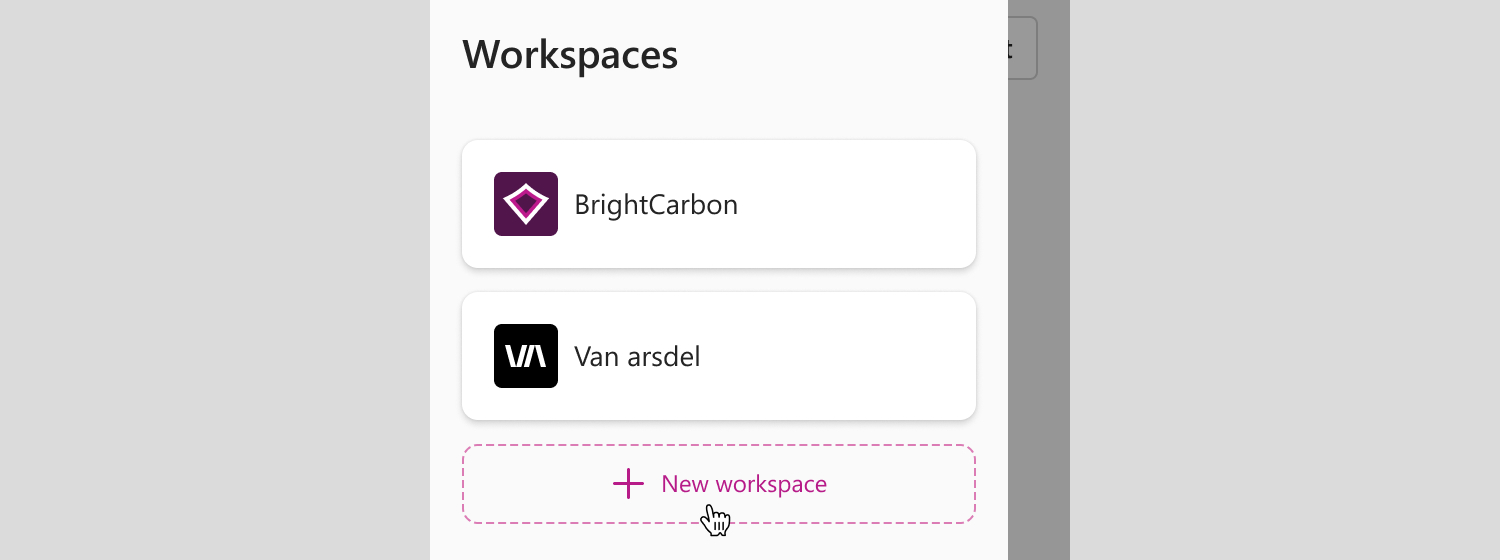
To add a workspace:
- Navigate to Workspaces. You can access it in two ways:
- Select the workspace switcher in the upper-left corner of the home screen.
- Go to the Settings menu in the lower-right corner of the workspace home screen, and then select Manage workspaces.
- On the workspaces screen, select New workspace.
You’ll then be guided through the following steps.
1. Name your workspace
Enter a name that reflects your brand, team, or project. You can change it later.
2. Choose a privacy setting
Select who should see this workspace in BrandIn:
- Anyone in my BrandIn team account. Creates a workspace that is visible to everyone with access to BrandIn.
- Control access using SharePoint or OneDrive. Creates a workspace with restricted access. If you choose this option, you’ll be asked to link a SharePoint or OneDrive location. Only people who can access the linked SharePoint or OneDrive location will see the workspace in BrandIn.
ℹ️If you skip restricting access, the workspace will be created as public. You can link permissions to restrict access to a workspace at any time from the workspace Settings.
3. Link permissions to a workspace (optional)
If you choose Control access using SharePoint or OneDrive option when creating a workspace, you’ll be asked to link a SharePoint or OneDrive location. BrandIn uses that location’s permissions to determine who can access the workspace.
To link permissions, open SharePoint or OneDrive and go to the site, library, or folder you want to link:
- If it's a SharePoint site or document library, open it and then copy the link from the browser’s address bar.
- If it's a folder, right-click it and select Copy link, or select it and choose Copy link from the toolbar.
4. Add a workspace icon (optional)
To add an icon, link to a file stored in SharePoint or OneDrive:
- Find the file you want to use as an icon.
- Right-click and select Copy link, or select it and choose Copy link from the toolbar.
- Paste the link into the icon link box in BrandIn
⚠️Make sure users in your BrandIn account have access to the linked image file in SharePoint or OneDrive. If they don’t, they won't be able to see the icon in BrandIn.