All asset libraries in BrandIn connect to folders or libraries in SharePoint or OneDrive. The assets stay stored in those locations, but appear in BrandIn once linked. Any changes you make will instantly appear in BrandIn.
Manage assets in BrandIn using SharePoint or OneDrive
ℹ️Below instructions are for SharePoint, but the process is the same in OneDrive.
Follow these steps to add, edit, or remove assets from your BrandIn library:
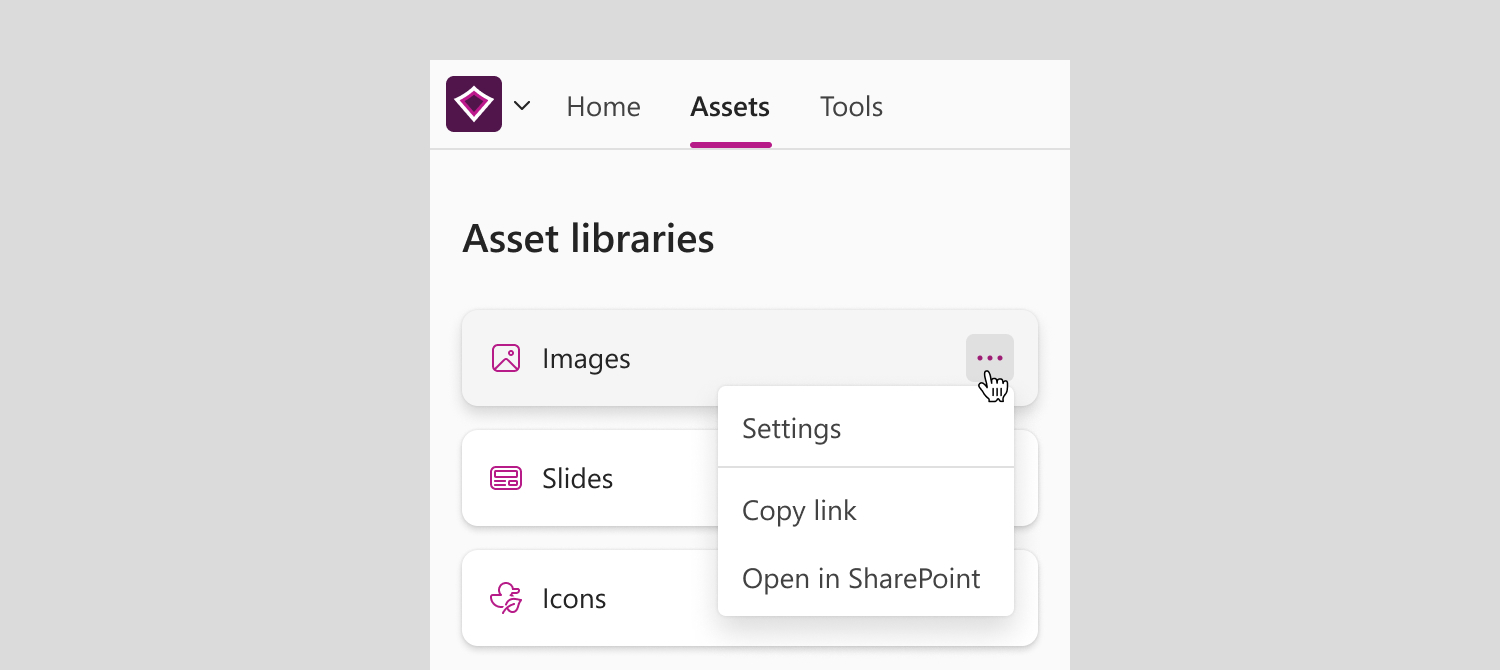
- On the home screen, right-click on the library, or select the More options button (three dots) next to it.
- Select Open in SharePoint. This will take you directly to the SharePoint library where your assets are stored.
- Once in SharePoint:
- To add new assets to BrandIn, follow Microsoft's guide on how to upload files and folders to a library.
- To remove assets from BrandIn, follow Microsoft's guide on how to delete a file, folder, or link from a library.
To learn more about supported asset types, see Asset library types article.