What are tools?
The Tools tab contains Productivity tools, Brand colors, and Paragraph styles. It's everything you need to build neat slide layouts, format using your brand styles, and edit content fast. You might not see all of these, depending on what your admin has set up.
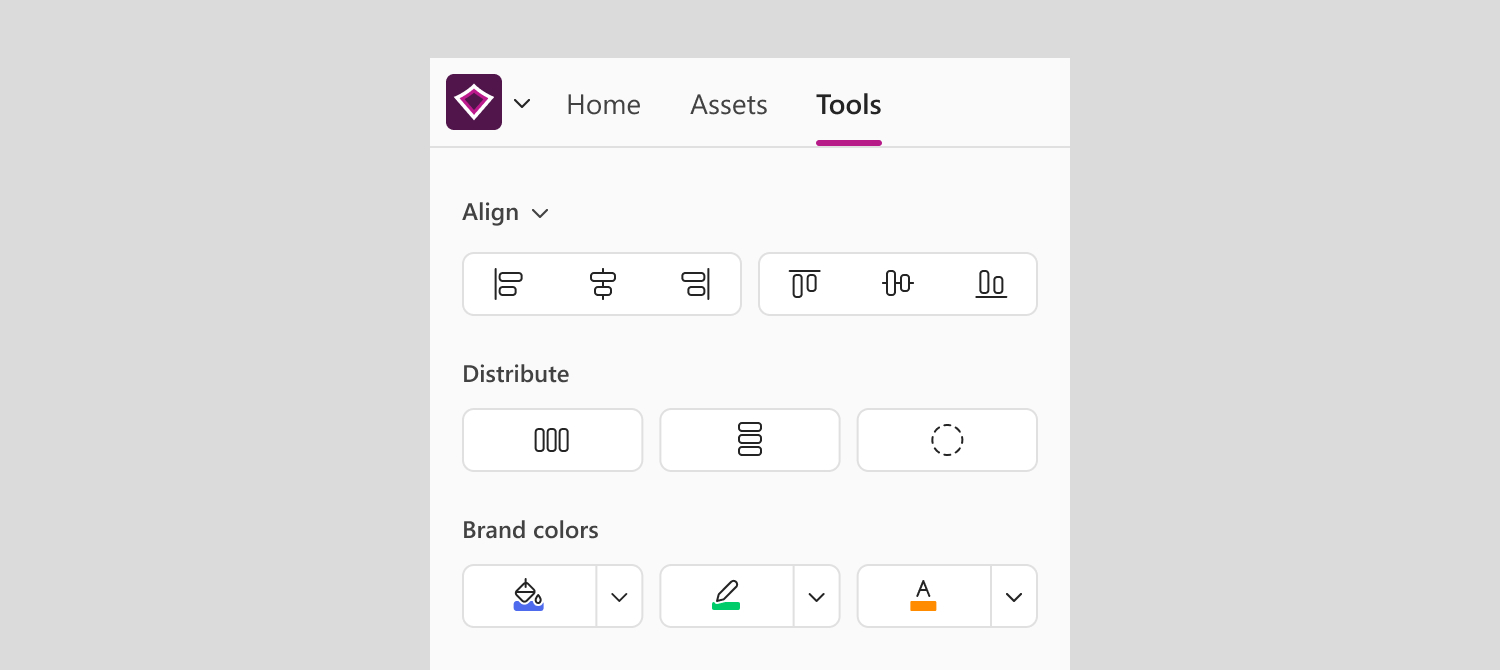
ℹ️Tools are currently only available in PowerPoint.
Online and desktop availability
Most of the Tools tab works in PowerPoint online. A few tools need the PowerPoint desktop app with the BrandIn Desktop Extension installed. All enabled tools still appear in the Tools tab, but they might be disabled until you switch to the desktop app.
If a tool's still disabled in the desktop app, reach out to your administrator.
Reference object setting
A few tools use a reference object to decide what other objects match or align to. By default, that's the first object you select.
To change it:
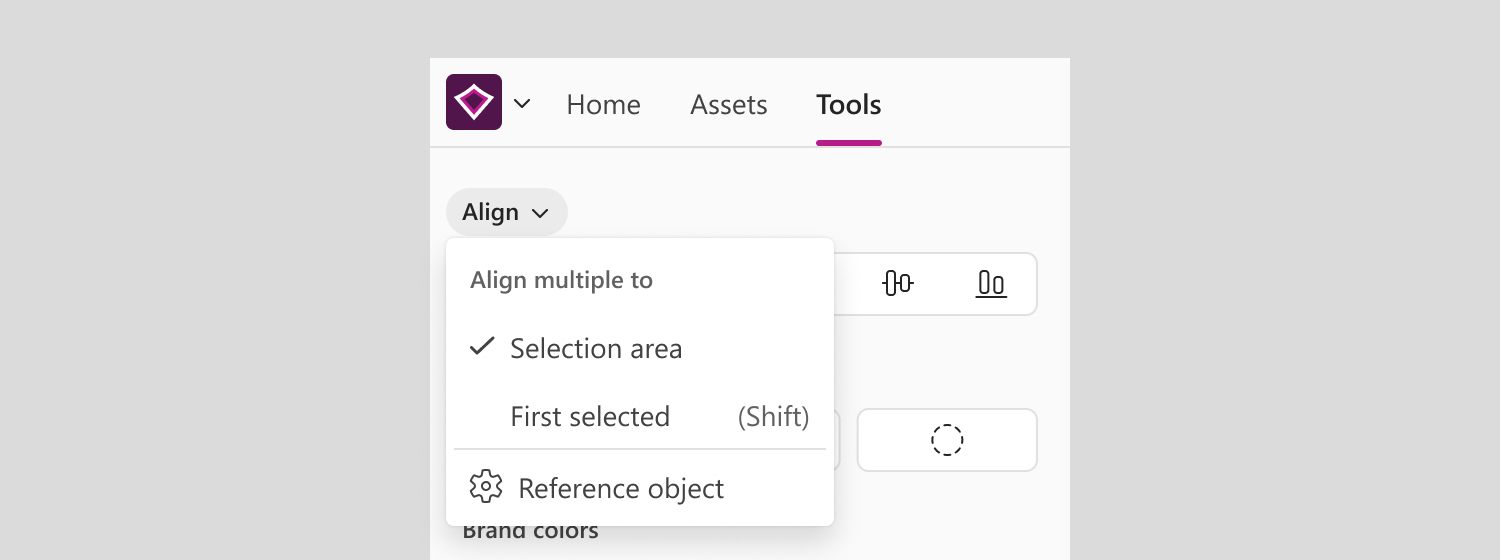
- Go to Align, then select Reference object.
- In the dialog that opens, choose First selected or Last selected.
Align tools
The Align tools go beyond PowerPoint's built-in alignment tools, with a few extra options for laying out your slides.
- Align to slide — select a single object, then any align button, to align it to the edge of the slide.
- Align to selection — select two or more objects, then any align button, to align to the selection boundary.
- Align to reference object — select two or more objects, then select any align button while holding Shift, to align to your reference object.ℹ️
If you'd rather not hold Shift every time, go to the Align menu, then choose First selected (or Last selected, depending on your reference object setting). BrandIn aligns to your reference object by default for the rest of the session, until you restart PowerPoint.
Distribute tools
Distribute spacing
You can evenly distribute the spacing between objects to create consistent layouts.
Select three or more objects, then select Distribute horizontal spacing or Distribute vertical spacing.
ℹ️To snap objects together with zero spacing, hold Shift while selecting either button.
Distribute in a circle
Use Distribute in a circle to arrange objects into a circle, for custom diagrams and patterns.
Select three or more objects, then select Distribute in a circle to open a settings panel where you can adjust:
- Radius — adjusts the size of the circle.
- Rotation — rotates the entire arrangement.
- Arc mode — arranges objects into part of a circle, as a percentage: 100% is a full circle, 50% is a semicircle. Once on, choose a clockwise or counter-clockwise direction.
- Object orientation — rotates the individual objects. By default, objects keep their original orientation; select Rotate with circle to have them rotate around the arrangement instead.
- Center point — where the arrangement aligns to. It defaults to the slide's center, but you can also set it to your reference object or the selection area.
- Reset changes — restores objects to their original position.
Closing the panel saves your changes.
⚠️You can't reset objects to their original position after closing the panel — select Reset changes first if you want to restore them.
Paragraph styles
Paragraph styles let you apply pre-formatted, on-brand text styles to slide text in one step.
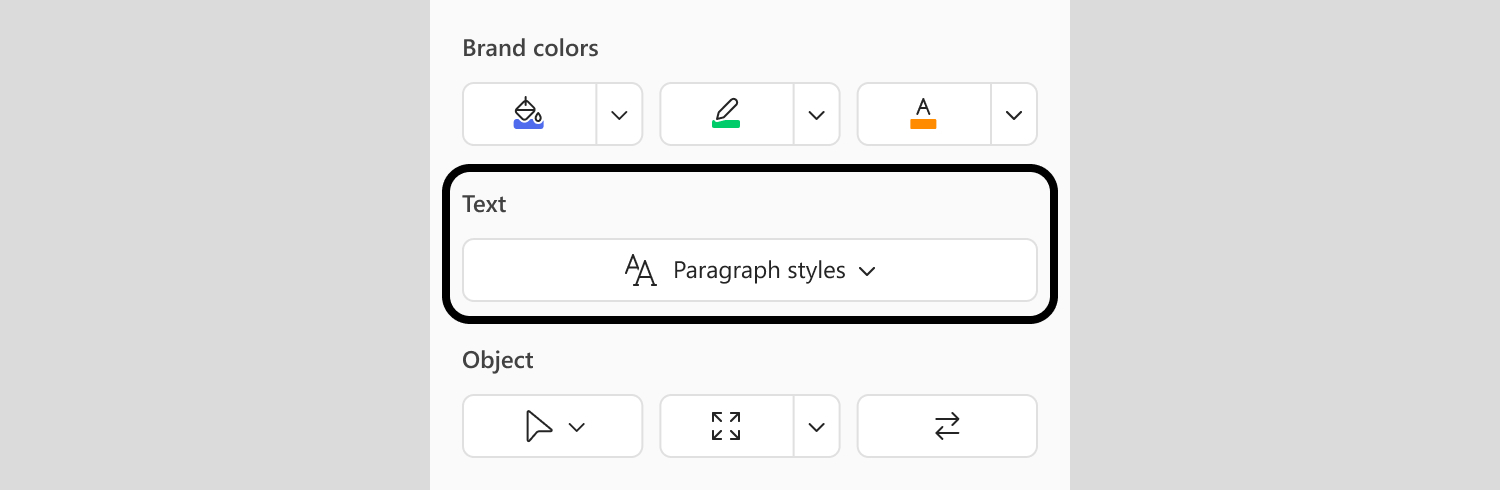
Once your admin has set them up, a Paragraph styles button appears in the Tools tab. Select it, then choose a style to apply to your selected text.
Style application follows your text selection:
- Select a shape and the style applies to every paragraph in it.
- Select part of a paragraph, and the style applies to the whole paragraph it's in.
ℹ️To use paragraph styles, you'll need the PowerPoint desktop app with the BrandIn Desktop Extension installed. Paragraph styles don't work on chart text.
Brand colors
Brand colors let you apply your organization's approved colors and palettes to your slide content.
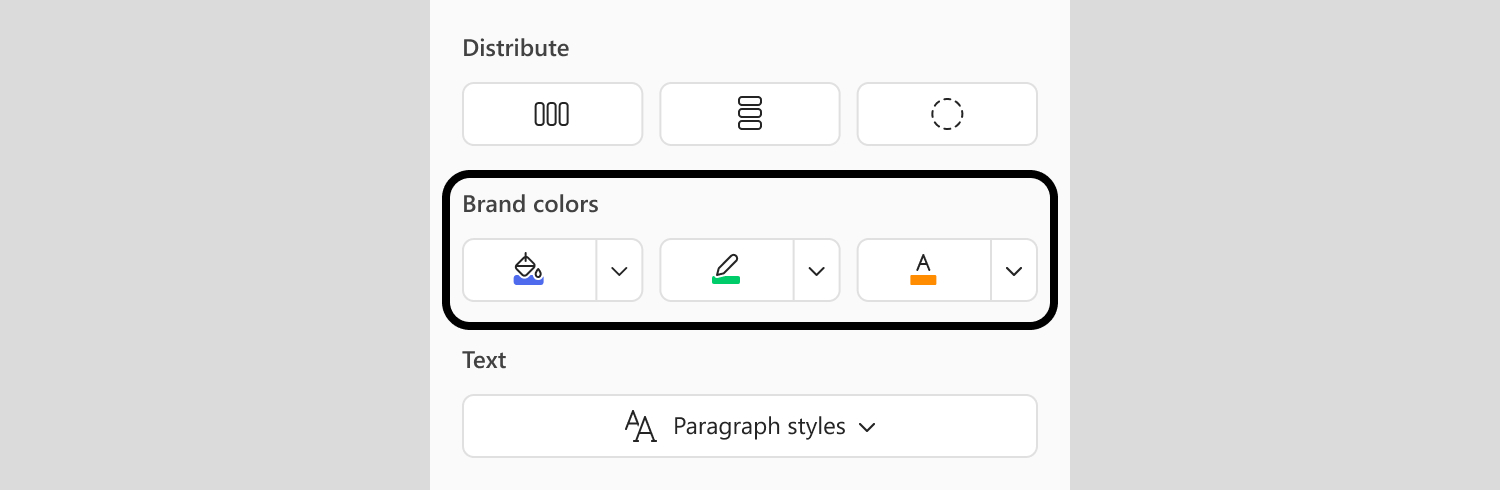
Once your admin has set them up, Fill color, Line color, and Text color buttons appear in the Tools tab. Each one only shows the colors and palettes approved for that specific use, so you'll always see the right options for your brand.
ℹ️To apply color to tables, you'll need the PowerPoint desktop app with the BrandIn Desktop Extension installed. Brand colors don't work on charts due to a Microsoft limitation.
Object tools
Object tools are part of Productivity tools, which help you edit objects on your slide fast — select objects with the same properties, match their sizes, or swap their positions.
Select objects with the same
Select an object or text box, then choose Select objects with the same to select every other object on the slide that matches a specific property of the first:
- Fill color
- Outline color
- Outline weight
- Shape type
- Font size
- Font color
- Font name
ℹ️You can't match objects inside and outside a group at the same time. Fill color matching doesn't work on gradients, patterns, or textures — only solid fills.
Match size
Use Match size to make objects the same size — what they match to depends on how many you select:
- Match to slide — select a single object.
- Match to reference object — select two or more objects.
To match just one dimension, select the arrow next to Match size, then select Match width or Match height. Hold Shift to lock the aspect ratio.
ℹ️To match the size of an image, you'll need the PowerPoint desktop app with the BrandIn Desktop Extension installed.
Swap objects
Swap objects exchanges two objects without losing their position or layer order. Select two objects, then select Swap objects.
Was this article helpful?
That’s Great!
Thank you for your feedback
Sorry! We couldn't be helpful
Thank you for your feedback
Feedback sent
We appreciate your effort and will try to fix the article