What is the Tools tab?
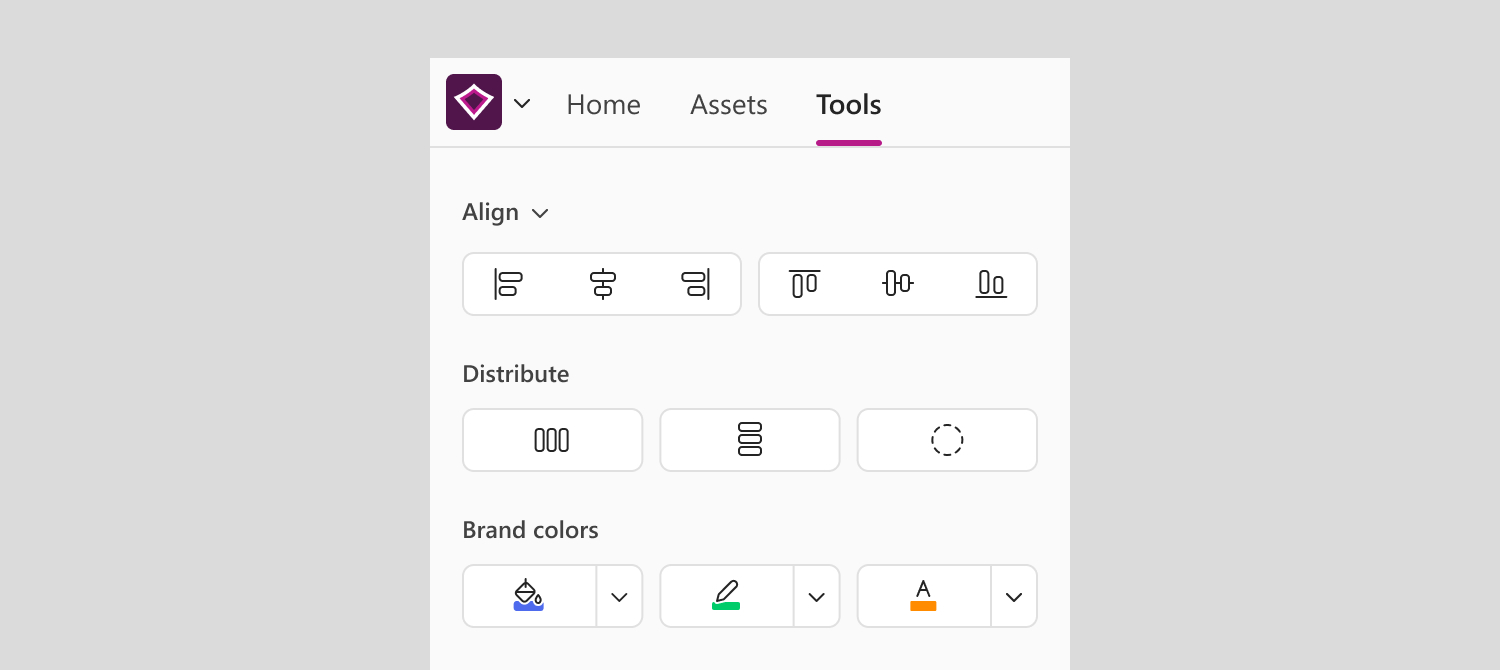
The Tools tab gives your users layout and formatting tools, and your approved on-brand styles, directly in PowerPoint — everything they need to build neat slide layouts and edit content fast.
It is set at workspace level, so you can give each workspace its own combination of features.
ℹ️Tools are currently only available in PowerPoint.
What's in the Tools tab
- Productivity tools give your users alignment, distribution, and object editing tools. On by default, with no setup needed.
- Brand colors give your users easy access to on-brand color palettes. Hidden until you set it up.
- Paragraph styles give your users easy access to on-brand text styles. Hidden until you set it up.
ℹ️Each can be turned on and off separately for each workspace. If all features are turned off, the Tools tab will be hidden for that workspace.
Online and desktop availability
Most of the tools work in PowerPoint online. Everything in the table below needs the PowerPoint desktop app with the BrandIn Desktop Extension installed for each of your users. Learn more about the BrandIn Desktop Extension
ℹ️Tools that need the Desktop Extension still appear in the Tools tab, but they're disabled until your user switches to the desktop app or installs the extension.
Productivity tools
Productivity tools are turned on by default, so there's nothing to set up. You can turn it off for any workspace that doesn't need it.
What your team gets
Productivity tools covers three groups of tools. For full instructions on each, see Edit your slides with tools.
- Align — goes beyond PowerPoint's built-in alignment tools, aligning objects to the slide, to each other, or to a reference object for neat layouts.
- Distribute — spaces objects evenly, snaps them together with no gap, or arranges them into a circle or arc for custom diagrams.
- Object — helps your users edit objects fast: select objects that share a property, match their sizes, or swap their positions.
Turn Productivity tools off
- Go to the home screen of the workspace where you want to turn off the feature.
- Select Edit next to the workspace name to open the workspace settings.
- Go to Features.
- Select Productivity tools, then turn off the toggle.
Turning it off doesn't affect Brand colors or Paragraph styles. But if it's the only feature you have turned on, the Tools tab disappears for that workspace.
Related articles
Was this article helpful?
That’s Great!
Thank you for your feedback
Sorry! We couldn't be helpful
Thank you for your feedback
Feedback sent
We appreciate your effort and will try to fix the article