ℹ️Brand colors feature is only available on Enterprise and Team enterprise plans. Learn more about BrandIn plans
What is Brand colors?
Brand colors give your users easy access to on-brand color palettes directly from BrandIn.
Brand colors are managed at the workspace level so each workspace can have its own set of palettes.
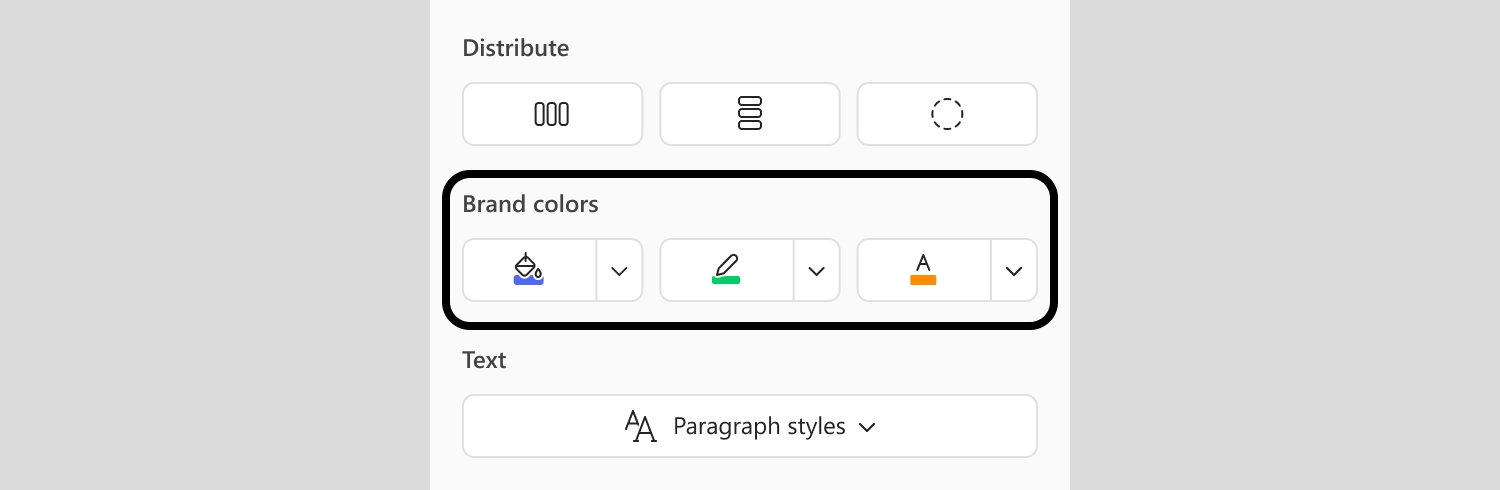
ℹ️Brand colors is a desktop-only PowerPoint feature and requires the BrandIn Desktop Extension.
Before you start
You'll need this in place before Brand colors will work for your team:
- A brand colors configuration file in the required JSON format. If you need help preparing this file, contact BrightCarbon and we'll create it for you.
Set up Brand colors
Overview
Brand colors are set up in two steps:
- Set up your colors and palettes by uploading a brand colors configuration file in Brand guidelines.
- Enable the Brand colors feature in Features to make the palettes available to users in the workspace.
1. Set up colors
Brand colors are set up in the Brand guidelines by uploading a configuration file.
The configuration file must contain your brand color palettes in the required JSON format. If you need help preparing this file, contact BrightCarbon and we'll create it for you.
Once your configuration file is ready, upload it to BrandIn:
- Go to the home screen of the workspace where you want to set up Brand colors.
- Select Edit next to the workspace name to open the workspace settings.
- Go to Brand guidelines, then Colors.
- Select Upload palettes.
- Drag and drop your brand colors configuration file into the Upload palettes dialog. To browse for a file instead, select from your device.
- Select Upload file.
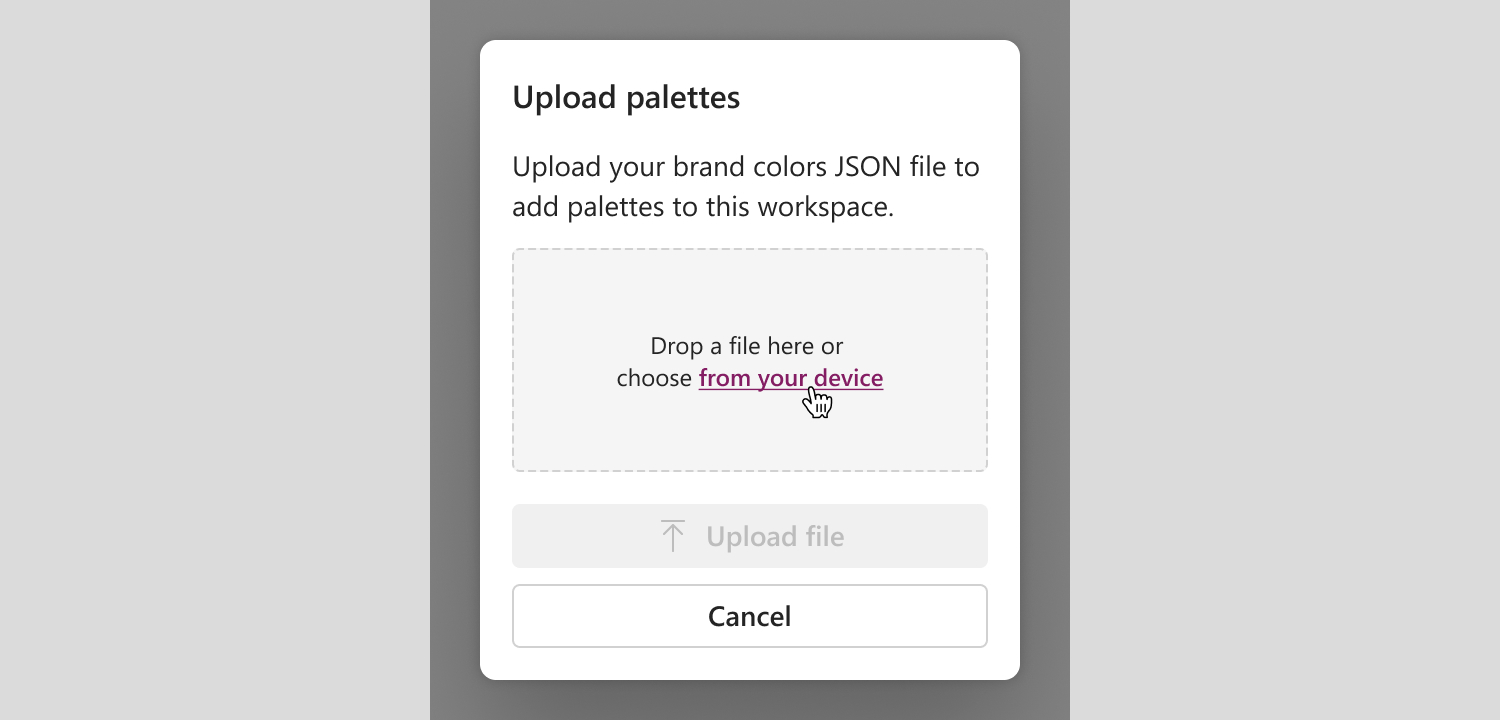
BrandIn extracts the color palettes from your file and adds them to the workspace. They won't appear for users until you enable the feature.
2. Enable the Brand colors feature
Once Brand colors have been set up in Brand guidelines, you can enable the Brand colors feature.
To turn on the feature for a workspace:
- Go to the home screen of the workspace where you want to enable the feature.
- Select Edit next to the workspace name to open workspace settings.
- Go to Features.
- Select Brand colors, then turn on the toggle.
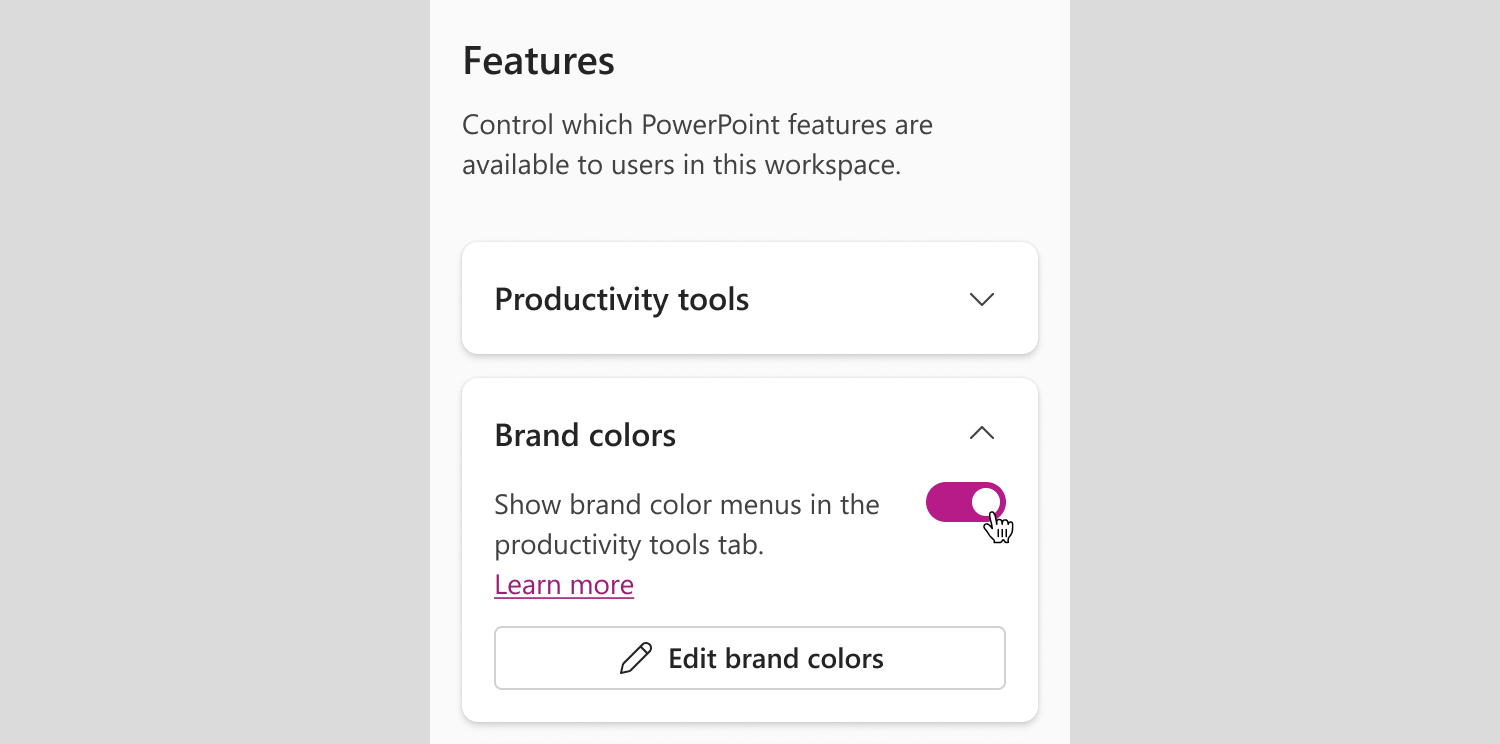
Once enabled, the color palettes will appear in the Tools tab of the workspace where the feature was turned on.
Replace Brand colors
To make changes to your Brand colors, you need to upload a new configuration file. Existing palettes cannot be edited directly in BrandIn.
If you need help updating the file, contact BrightCarbon and we'll make the changes for you.
Once your updated configuration file is ready, replace the existing colors in BrandIn:
- On the Colors screen, select Replace palettes.
- Drag and drop your brand colors configuration file into the Upload palettes dialog. To browse for a file instead, select from your device.
- Select Upload file.
Your existing color palettes will be replaced with the ones from the updated configuration file.
ℹ️Some colors may remain after replacement if they are used in Paragraph styles. To resolve this, delete the Paragraph styles first and then try again.
Delete all your palettes
⚠️Deleting removes every palette in the workspace and can't be undone. You'll need to upload a configuration file again to restore them.
ℹ️Some colors may remain after deletion if they are used in Paragraph styles. To resolve this, delete the Paragraph styles first and then try again.
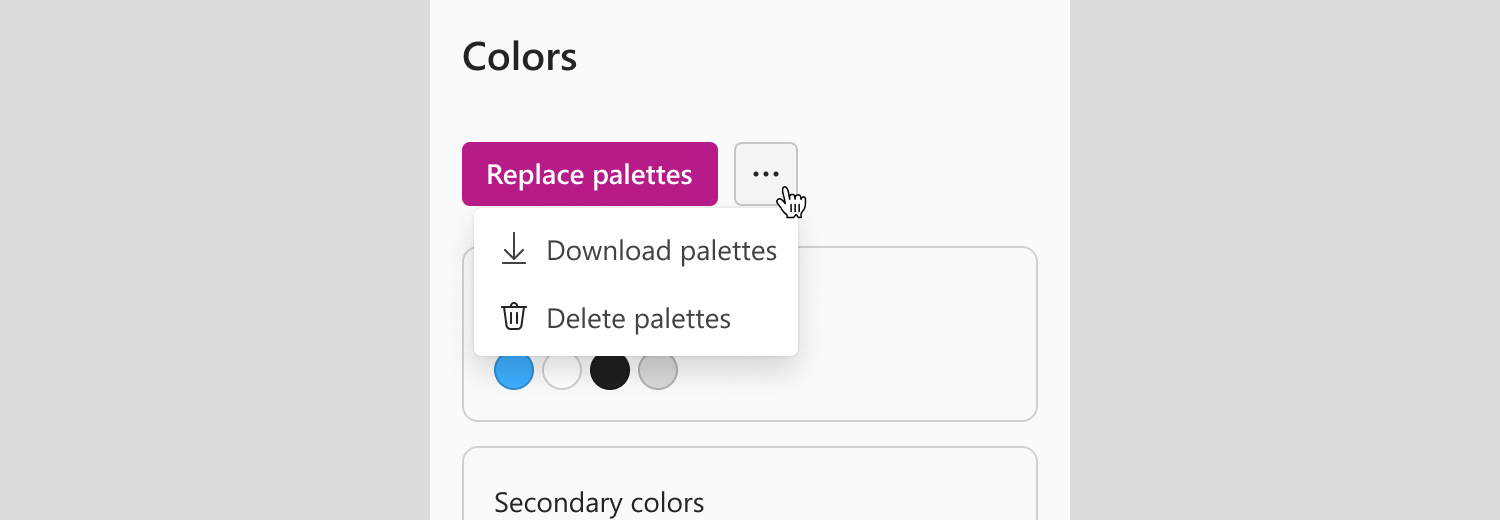
- On the Colors screen, select the More options button (three dots).
- Select Delete palettes.
Was this article helpful?
That’s Great!
Thank you for your feedback
Sorry! We couldn't be helpful
Thank you for your feedback
Feedback sent
We appreciate your effort and will try to fix the article